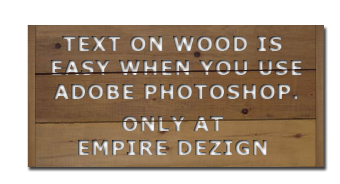
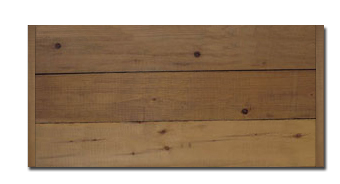
To begin this tutorial, create or find a wood graphic to work on.
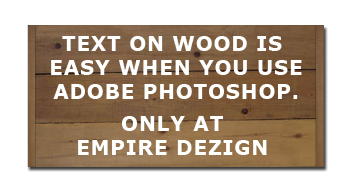
Now grab the "Text Tool" and select "Verdana" Bold and set at 20 pixels with white and type your message in all caps.
Right click on the text layer and select "Blending Options" then click on "Inner Shadow".
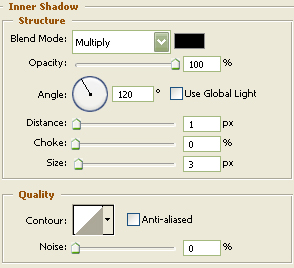
You may now click OK.
The Results!!!
I've added a couple of lines over the text where the boards end. You may also want to "Gaussian Blur" these lines, but only a little bit. I hope you enjoyed this quick and easy tutorial.