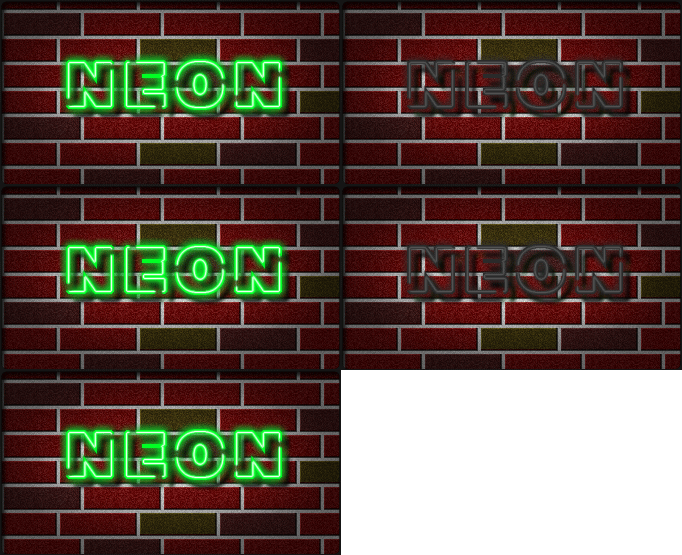
We'll begin this tutorial, by changing the foreground to 00FF24, then go ahead and choose the text tool. I chose "Arial Black" as the typeface at a size of 56 and adjust the tracking to 180. Now type "NEON" or something that you like better.
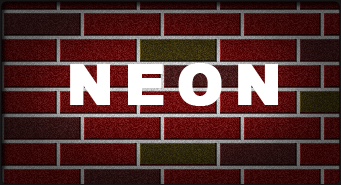
Now "Ctrl" click the text layer to create a selection around it and create a new layer. Now go to "Edit" then "Stroke." Size will be 3, color 00FF24 and make sure "Outside" is checked.
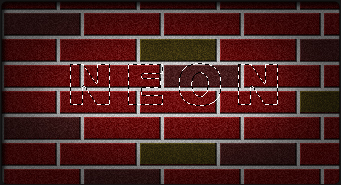
You should now have the following:
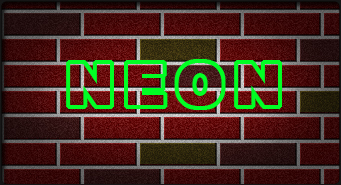
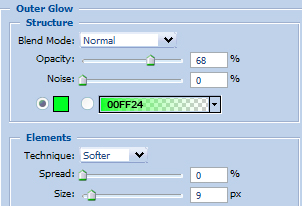
Right click on the layer and select "Blending Options" then "Outer Glow" and use the settings below.
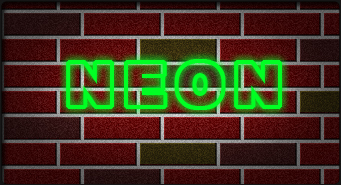
You should now have the following:
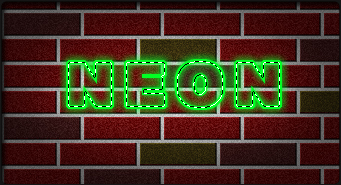
Now "Ctrl" click the text layer to create a selection around it and create a new layer. Now go to "Edit" then "Stroke." Size will be 1, color white and make sure "Center" is checked.
Now grab the "Eraser Tool" and erase sections of the letters as I have done below.
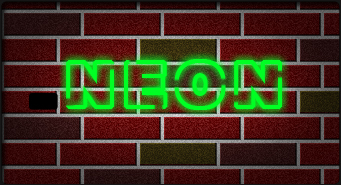
You should now have the following:
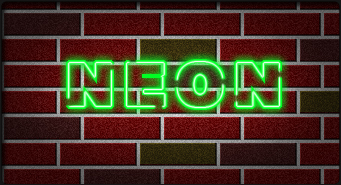
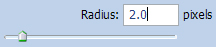
Now go to "Filter" then "Blur" and then "Gaussian Blur" and use the below settings.
You should now have the following:
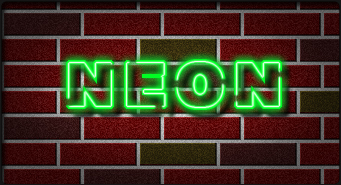
The Results!!!