Create a new canvas and type your text. I used "Edwardian Script " bold at 147 pixels with Tracking at 180. Download font here.

Now that you have your text, you can now right click on the text layer and select, "Blending Options...". Now click on "Drop Shadow".
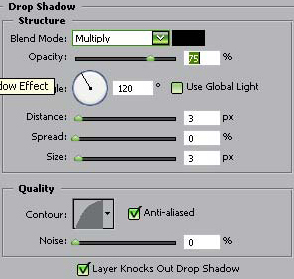
Do not click OK yet... still more to do.
Now click on "Bevel and Emboss ".
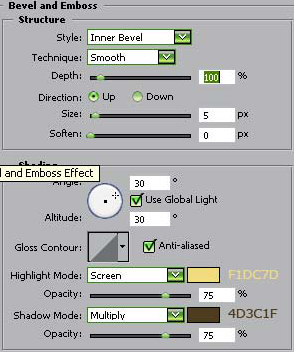
Do not click OK yet... still more to do.
Now click on "Contour" and apply the settings at left.
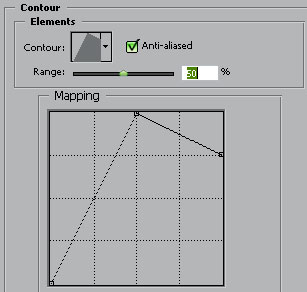
You may now click OK.
You should now have the following image:

Now hold the "Ctrl"/"Cmd" key in and click on the text layer. Now go to the main menu and click on "Select" then "Modify" and then "Contract." Create a new layer and using a soft tip brush, paint along the right side edges of the selection with white and black on the left edges. Deselect ("Ctrl" + "D" or "Cmd" + "D") and add some Gaussian Blur found in the Filter menu with a low setting. I used .8 as my setting.

I've also added some twinkles/sparkles to give it a more shiny effect.
The Results!!!