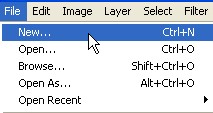
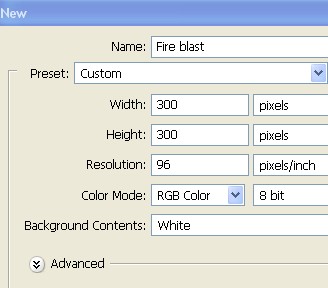
1. First of all to open a new Document. Go to Menu, select File > new and then a new document will appear. In the new Document type the name of the document and then specify the size width = 300 pixel, height = 300 pixel and resolution = 96 pixel/inch. You can do it with the file new > then press Ctrl+N.
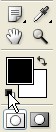
2. Press D in your keyboard now the black color selected in your foreground color and then press Alt+Backspace to fill the color.

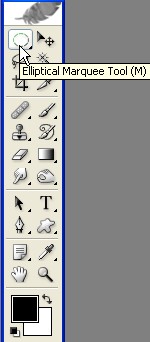
3. Select Elliptical Marquee Tool from the Toolbar.
4. With the help of Elliptical Marquee Tool create a new shape as shown below.

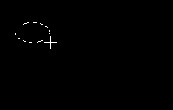
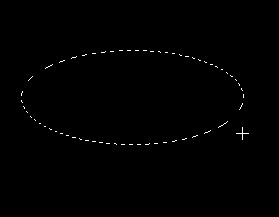
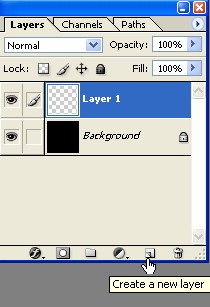
5. Now create a new Layer1, to create a new layer click on the icon that is shown with the hand sign in the Layer window or press Shift+Ctrl+N.
6. Click on the foreground color in the Toolbar.
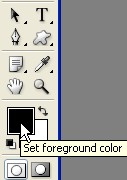
7. When you click on the foreground color you will get color picker you can choose color from there put the color code #FAEC05 in the red circle.
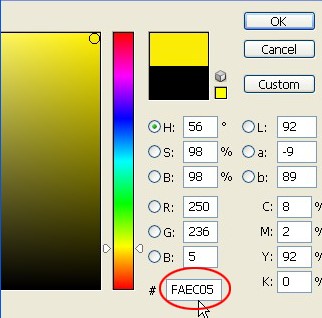
8. Now here press Alt+Backspace to fill the color.
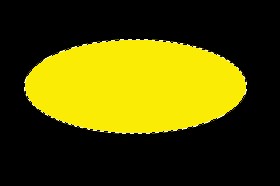
9. Here in the Menu bar select Filter > Stylize > wind.

10. Here in the wind select Method - Blast / Direction - From the right and then click ok.
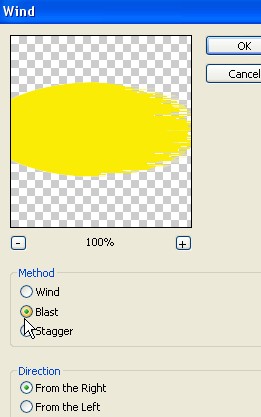
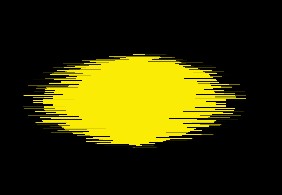
11. Here again go to the wind and in the direction select from the left and then click ok.
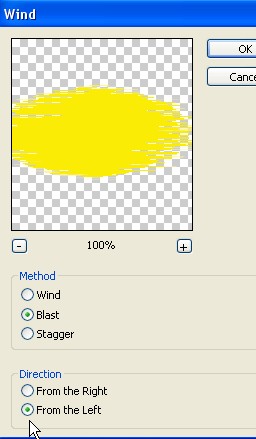
12. Now the Image will look like this.
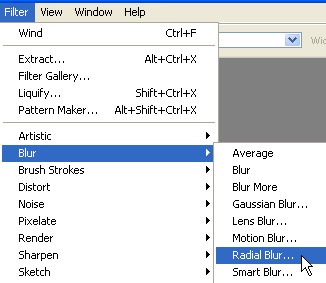
13. Now select > Filter > Blur > Radial Blur.
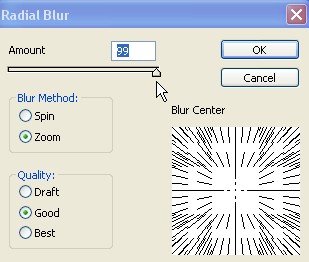
14. In Radial Blur select Amount 100 / Blur method -zoom / Quality- good and then click ok.
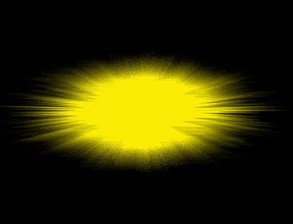
15. Now the Image will look like this.
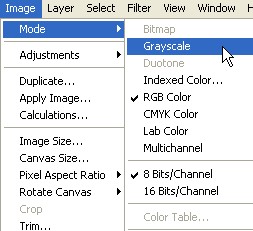
16. Now from the Menu select > Image > Mode > Grayscale.
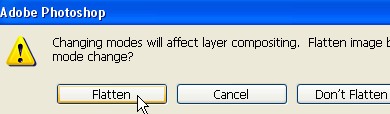
17. When you select Grayscale you will see this window below click on the Flatten in it which is shown with the pointer.
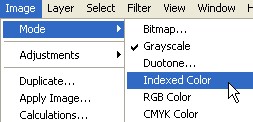
18. Now again select Image > Mode > click on the Index.
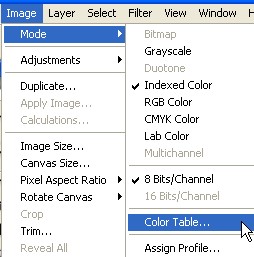
19. Now again select Image > Mode > color Table.
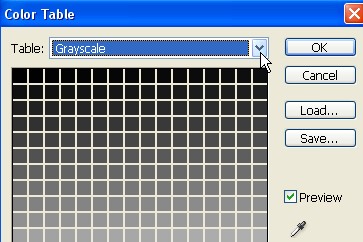
20. Here in the color table click on the arrow which is shown with the pointer.
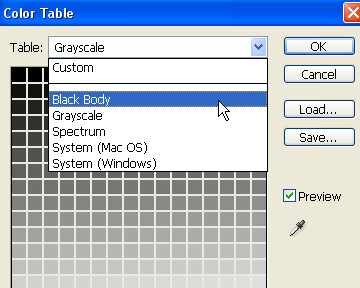
21. From here select Black body.
22. After click on the black body click ok.
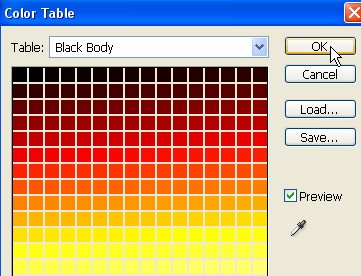
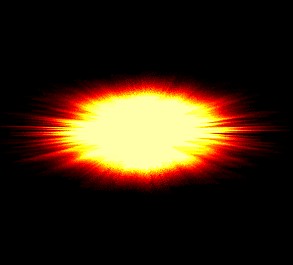
23. Final Image.