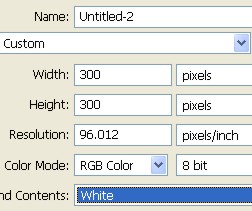
1. First of all to open a new Document. Go to Menu, select File > new and then a new document will appear. In the new Document type the name of the document and then specify the size width = 400 pixel, height = 400 pixel and resolution = 96 pixel/inch.
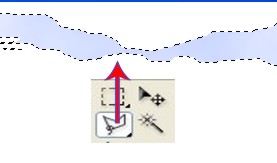
2. Create a new shape with the help of Lasso Tool and then select a new Layer and fill with the color # D8E1FF after that press Ctrl+D for deselect
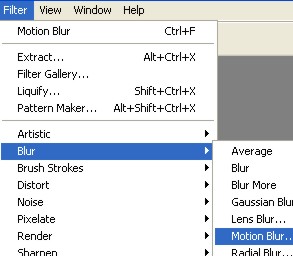
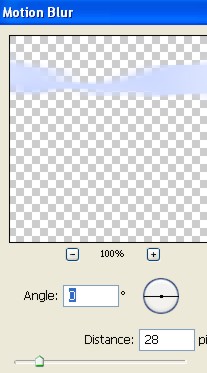
3. Here select Filter > Blur > Motion Blur click ok.
4. Now the Image will look like this.
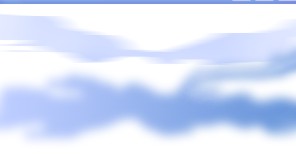
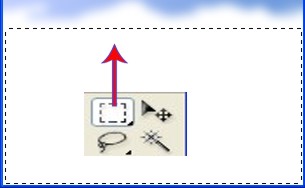
5. Create a new rectangle with the Rectangular Marquee Tool and select a new Layer.
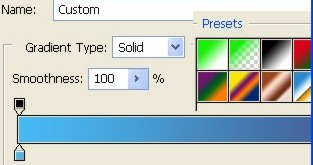
6. Select Gradient Tool here click on the red circle and select the color code # 3CA3E2 , # 44689D

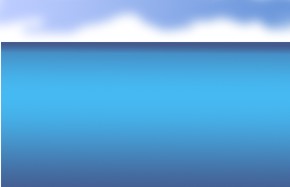
7. Now the Image will look like this.
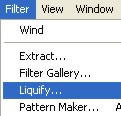
8. Select Filter > Liquify.
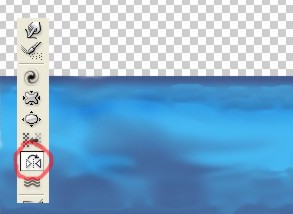
9. Use Mirror Tool in the Liquify.
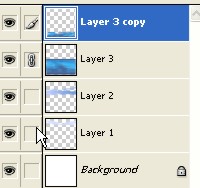
10. Press Ctrl+J to make a copy of Layer3.
11. Select Filter > Distort > ZigZag click ok.
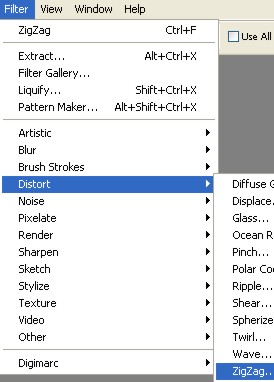
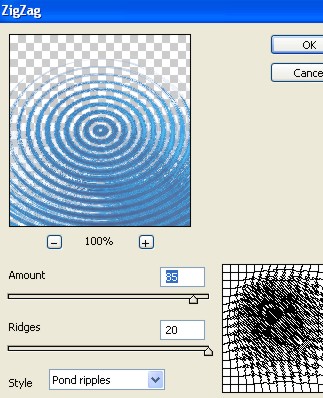
12. Now the Image will look like this.
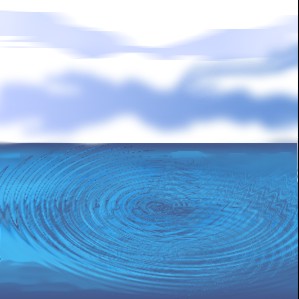
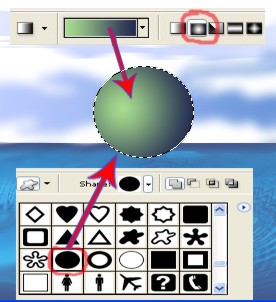
13. Now select Custom shape and select Ellipse from there.
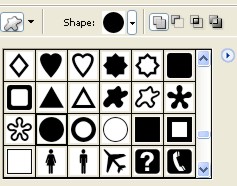
14. Now create a Ellipse with the help of Custom shape select Pen Tool and Right click > Make selection select New Layer and then fill the color with the Gradient Tool after that press Ctrl+D for deselect.
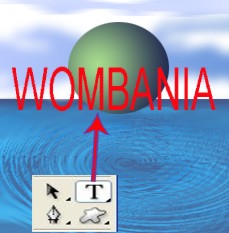
15. Here type any words with the help of Type Tool.
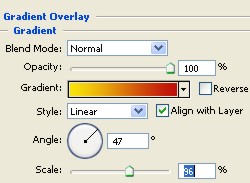
16. Double click on the Text Layer > Layer style > Gradient Overlay select every thing according to the Image below.
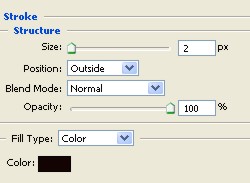
17. Now select Stroke and select structure according to the Image below.
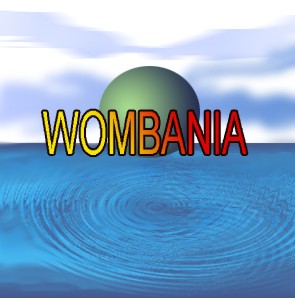
18. Now the Image will look like this.
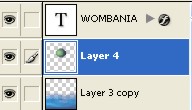
19. Here select Layer4.
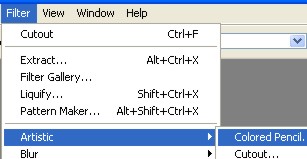
20. Select Filter > Artistic > colored Pencil.
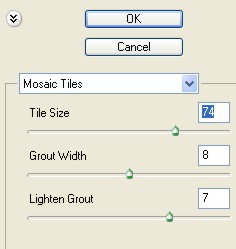
21. Select Mosaic Tiles here.
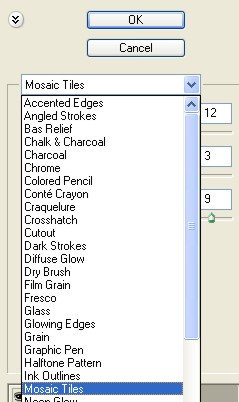
22. Select Tile size=74, Grout width=8, Lighten Grout=7 in the Mosaic Tiles.
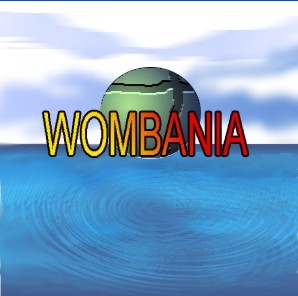
23. Final Image.