


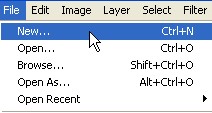
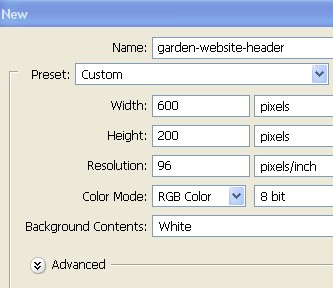
1. First of all to open a new Document. Go to Menu, select File > new and then a new document will appear. In the new Document type the name of the document and then specify the size width = 600 pixel, height = 200 pixel and resolution = 96 pixel/inch. You can do it with the file new > then press Ctrl+N.
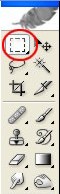
2. Now select Rectangular Marquee Tool from the Toolbar.
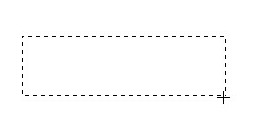
3. Now here create a Rectangle with the Rectangular Marquee Tool as shown below.
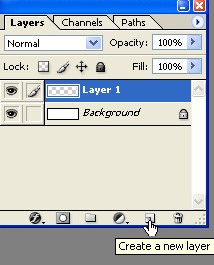
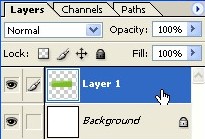
4. Now create a new Layer1, to create a new layer click on the icon that is shown with the hand sign in the Layer window or press Shift+Ctrl+N.
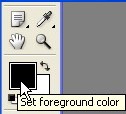
5. In the Toolbar click on the Foreground color which is shown with the arrow.
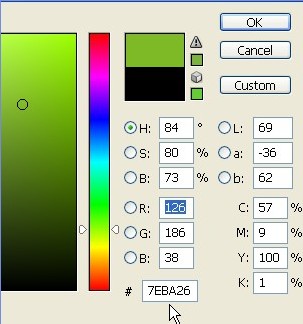
6. When you click on the Foreground you will get the Color Picker choose color code # 7EBA26 from there.
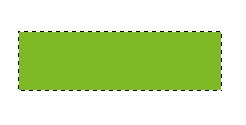
7. Now here press Alt+Backspace to fill the color and then Deselect.
8. Select Pen tool from the Toolbar.
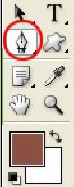
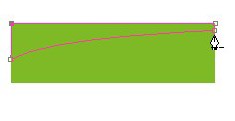
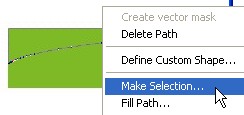
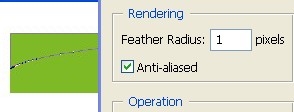
9. Create a new shape with the Pen Tool and then Right click > Make Selection > select Feather1px > click ok.
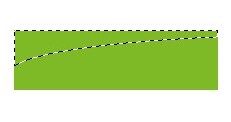
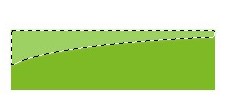
10. Press Alt+Backspace and fill the color code # 9CD064 and then Deselect.

11. Double click on the Layer1 for Layer style.
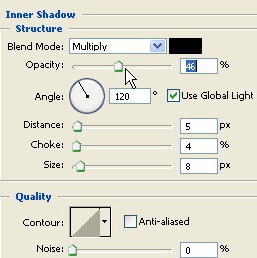
12. In the Layer style select Inner Shadow with the Opacity-46% / Distance-5px / Choke-4% / Size-8px.
13. Now select Bevel and Emboss with the Depth-100 % Size-5px . Soften-9px. In the shading select Opacity-26% and 36% and then click ok.
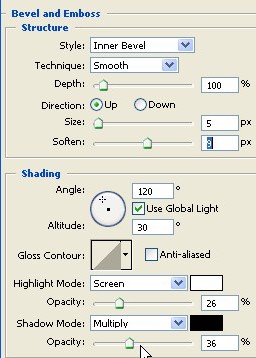
14. Now the Image will look like this as shown below.

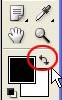
15. In the Tool bar click on the icon below foreground color which is shown with the red circle.

16. Now here click on the red circle to choose the white color.
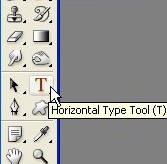
17. Now select Text Tool from the Toolbar.
18. Type some words on the created Image.

19. Here select any picture of Flower or Leaves and select it with the help of Pen Tool.
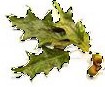
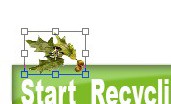
20. Now press Ctrl+V and then select Move Tool from the Toolbar and with the help of Move Tool put the selected Leaves picture on the Image.

21. Now press Ctrl+T and push the corners of Transform selection with the help of Mouse to make it small then press Enter.
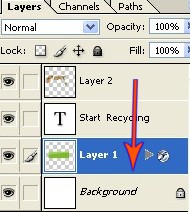
22. Here drag the Layer2 and put it under Layer1.
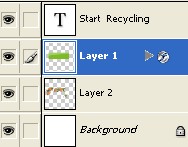
23. Here Press Ctrl+J to make the copy of Leaves and Flower and then in the Layer window select the Layer which is on the top press Ctrl+E to merge all the Layer.

24. Now press Ctrl+J to make a copy of Final Image as shown below.

25. Now our image has completed.

