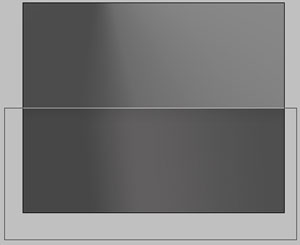
Open a new file with 1280x1024 px and 72 dpi. Applying the next instrument
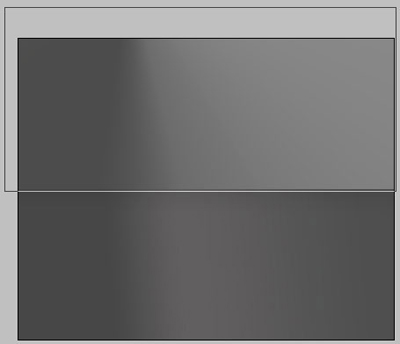
 , represent the background in two stages for the picture to be.
The first stage includes next elements:
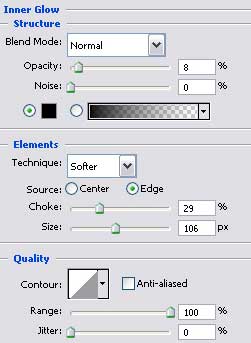
Blending Options-Inner Glow
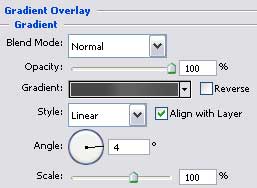
Blending Options-Gradient Overlay
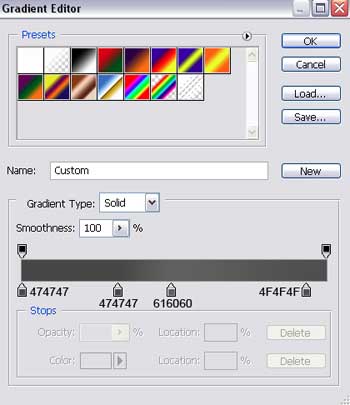
Gradient's parameters:
Applying the same instrument, pass to represent the next stage:
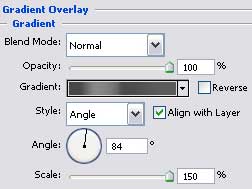
Blending Options-Gradient Overlay
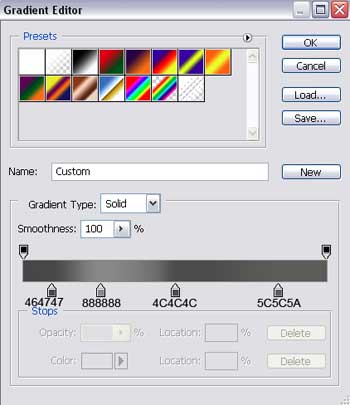
Gradient's parameters:
Try to dark out a little more the upper half of the picture, using the previous instrument
.
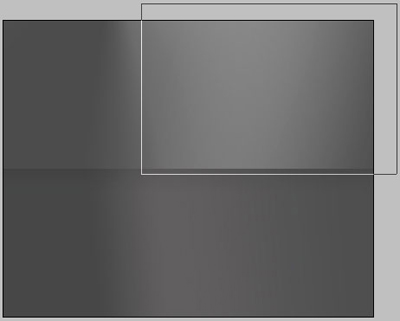
Fill 0% on the layers.
Blending Options-Gradient Overlay
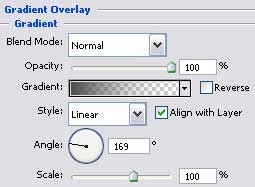
Gradient's parameters:
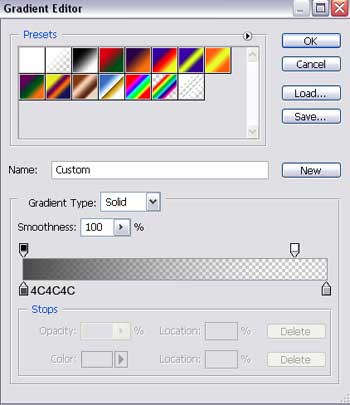
Choose the next tool
 and try to draw a flame silhouette, having white color.
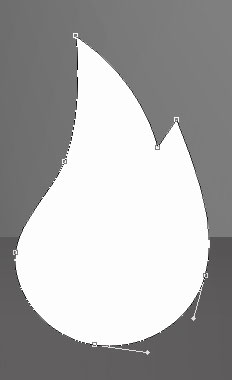
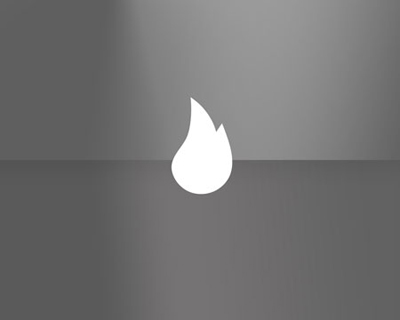
Make a copy of the new made layer and select Free Transform option to turn it a little and apply the parameters from below (the color is FFB80E).
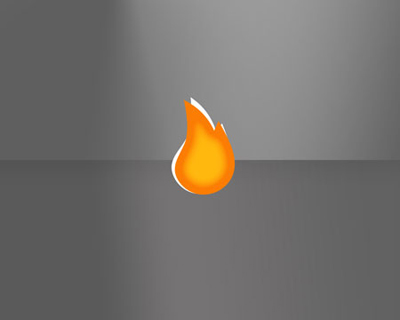
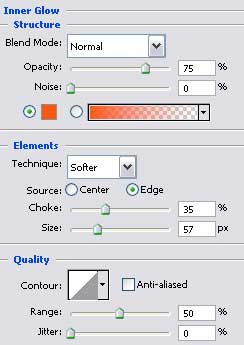
Blending Options-Inner Glow
Select another instrument
 that will help us to represent the frame of the cigarette lighter.

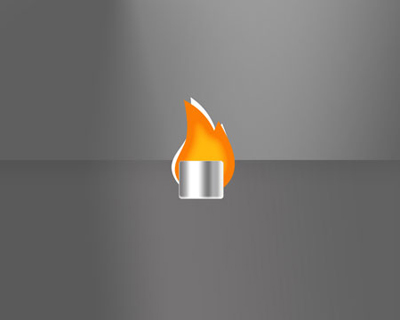
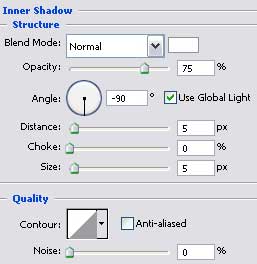
Blending Options-Inner Shadow
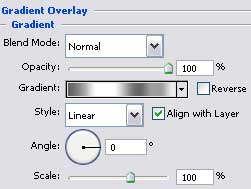
Blending Options-Gradient Overlay
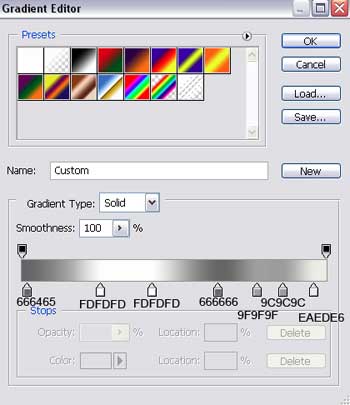
Gradient's parameters:
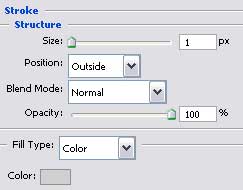
Blending Options-Stroke