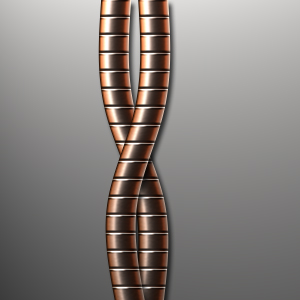
Open a new document, I've used 500x500 px. "Create new layer" og pick Rectangular Marquee Tool and make a long selection. My selection is about 30x400 px. Pick Gradient Tool and use "Copper" in Options Bar.
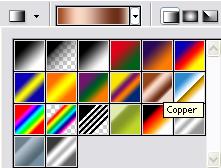
Use Gradient Tool (cobber) in your selection from left to right. Then Ctrl+D for deselct.
"Create new layer" og pick Zoom Tool. Zoom down on the picture and pick Regtangular Marquee and select a very lang, smal area. My selection is 30x1 px.
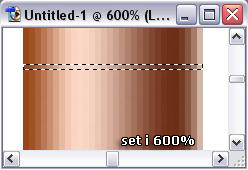
Fill the selection with #000000 og Ctrl+D for deselect. "Duplicate Layer" and pick Move Tool. Then push the down-arrow, but only one time. Go to Image > Adjustments > Invert (Ctrl+I)...it makes the duplicated layer white.
Go to Layer > Merge Down. Name the layer "lines"
Duplicate "lines" a lot of times and move them under each other. (like picture three)
Push the top layer in layers-palette (lines copy **) and go to Layer > Merge Down Do this so you only have ONE layer with lines. Then set Opacity of "lines" to 50%.
Go to Layer > Merge Down (then you only have "background" and "layer 1")
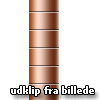
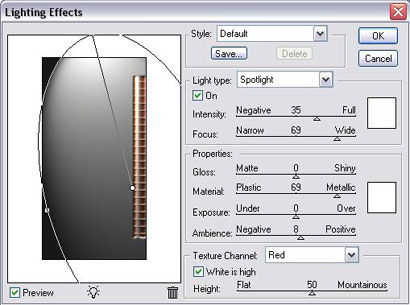
Go to Filter > Render > Lightning Effects
FINISH.
You can also form the wire with Filter > Distort > Shear