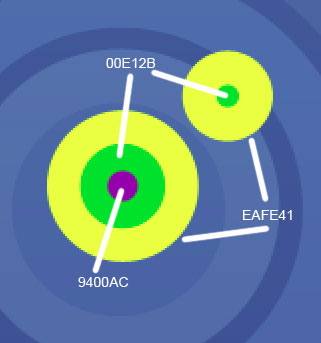
Open a new file having 1440x900 px and 72 dpi. Then applying this instrument
 , represent the background of our picture.

Blending Options-Gradient Overlay
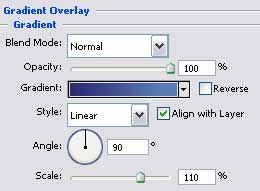
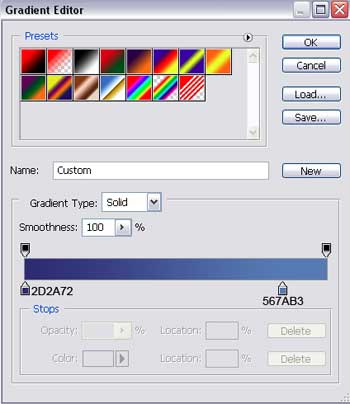
Gradient's parameters:
Select after that the here shown instrument
 and represent the main element and several circles. The first one should have this color- 5A89BB.

The second is painted in 4D80B6.

The third has the color 4779B0.

Represent near the first elements two more circles, situated one in another.
The first has the color 5B89BA.

The second – 4F80B7.

Choose the next instrument
 to select from the next table the element encircled with red color.
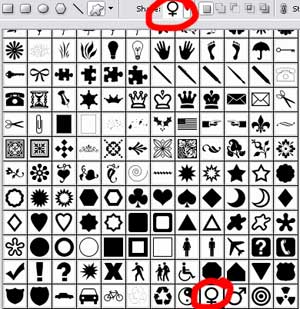
Using the color 4273AC, place the chosen indicator on the composing circles. Applying the instrument
 , mark out the tops of the interior circle.
Then apply the Free Transform selection to narrow a little the interior circle, the way it is shown below. Then turn around the indicator.

Situate a ring now on the circle, which color is 5184BA. Using this instrument
, represent the outside borders, and then press the Alt button to cut out the middle of the figure.


We have to choose another cliché from the next table, the same way we have represented earlier the indicator with the instrument
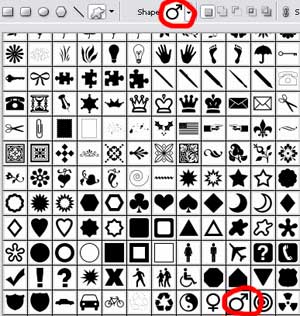
Represent one more indicator, having the color 3D6DA7. Then select this instrument
to mark out the tops of the interior circle and select Free Transform option to narrow a little the interior circle, like it is demonstrated next picture. Turn around the circle too.

Represent on the indicator a ring, colored in 4D7FB6.


Now we have to create a new layer. Then select a brush and two colors: the color of the first indicator's ring and the color of the first indicator and represent the transition of colors (5082B8, 4071A9).

For our convenience, we have to merge down in a group all the layers composing those two combined circles.
Copy this new made group 18 times and select Free Transform option to place each copy the way it is represented next image.

The eighteenth copy we'll place the same way it is shown on the next picture. Then change its colors.