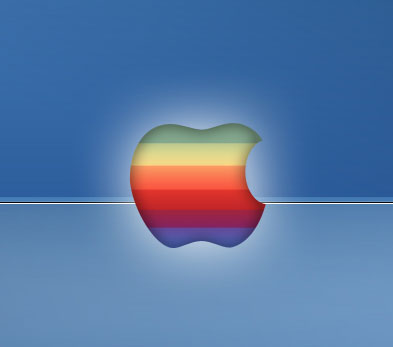
Open a new file with 1024 x768 px and 72 dpi. The primary background we'll create in two stages, applying the instrument from here
The first stage includes getting the next result:
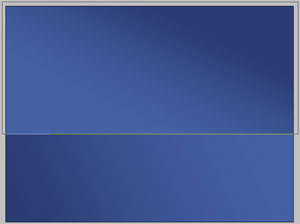
Blending Options-Gradient Overlay
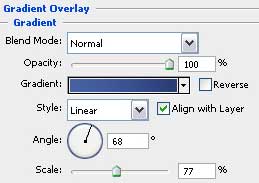
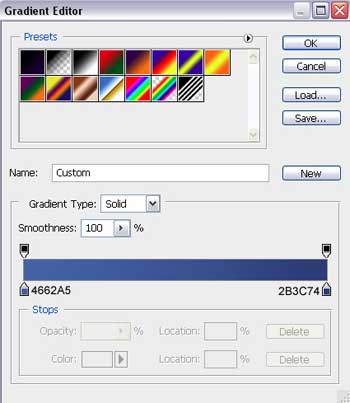
Gradient's parameters:
In the second stage you must get the next picture:
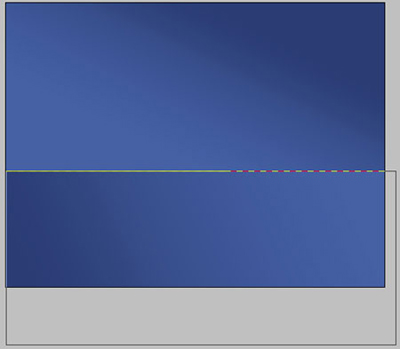
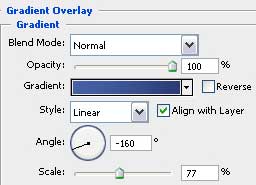
Blending Options-Gradient Overlay
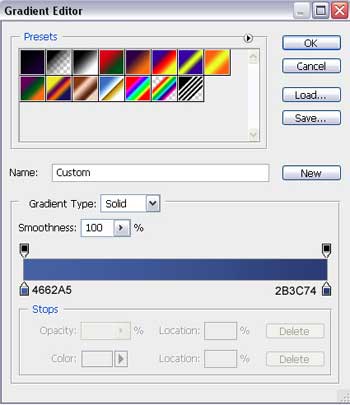
Gradient's parameters:

Selecting the same instrument used before, continue working with the second lowest half of the screen.
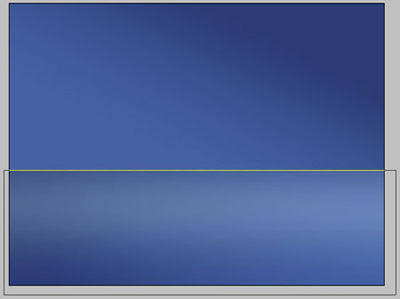

Opacity 80%
Fill 0% on the layers. The Opacity on the layers should be of 80%.
Blending Options-Gradient Overlay
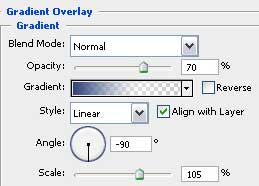
Gradient's parameters:
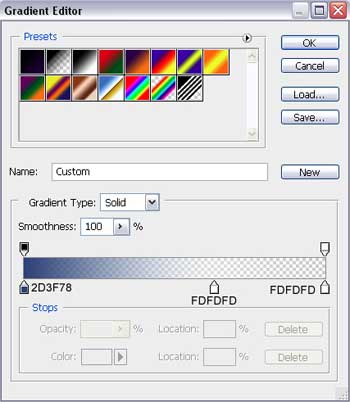
Choose the instrument indicated here to create one more layer on the upper half of the background.
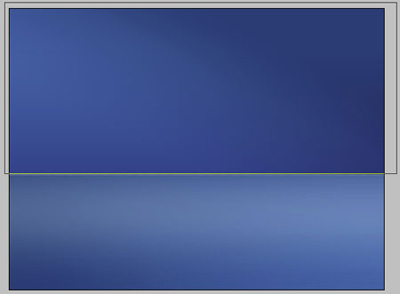

Fill 0% on the layers.
Blending Options-Gradient Overlay
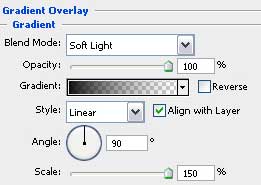
Gradient's parameters:
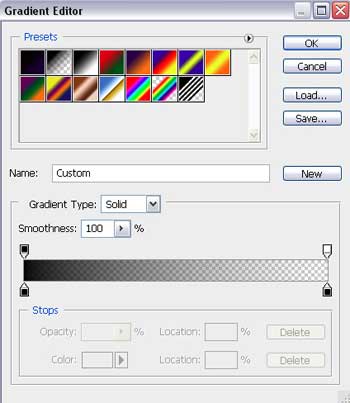
Choose the instrument to draw in the middle of the picture a thin stripe.

Blending Options-Gradient Overlay
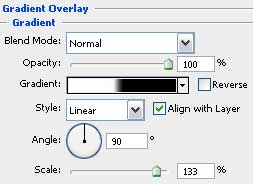
Gradient's parameters:
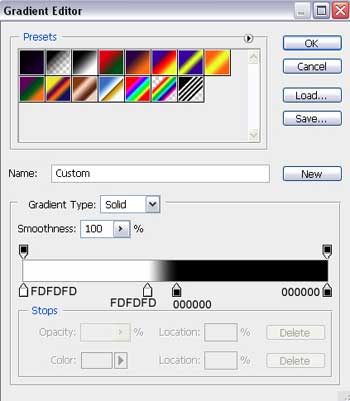
Select the following tool and draw a big circle.
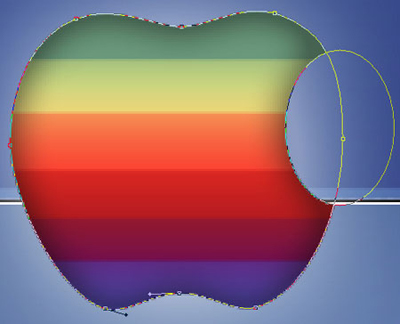
Press the Alt button while using the same instrument and cut out a small part of the figure from the right side. The next instrument will be helpful in adding on the big circle's figure, on the top and on the bottom a kind of deepness. Applying this instrument , it's possible to transform our circle into an apple.