Here we'll see how to create a clean, professional content box that can be used, for example, in a menu.
Create a new document 200px by 400px with white background.
Create a new layer and name it "box".
Now select the Rounded Rectangle Tool with 14px Radius, choose a light grey as foreground color (I'm using #E0E0E0) and draw a rectangle that will be your menu Be sure to have the Antialiased Box checked in the top bar. See my bar:

Here's my just drawn basic box:

Now, holding CTRL pressed, click on the box layer, it will be highlighted.
Create a new layer and name it "gradient".
I'm using this gradient:
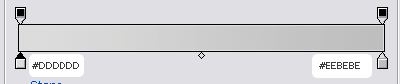
and drawing it this way, from left to right, holding SHIFT pressed to to draw straight.
Now press CTRL+D to deselect.
This is how it looks like right now:

Now we'll add a light shadow so it gets a more attractive look, always maintaining a clean and professional style.
Double click the box layer in the layers palette, then check the Drop Shadow box and apply the following settings (the color I used is #292929):
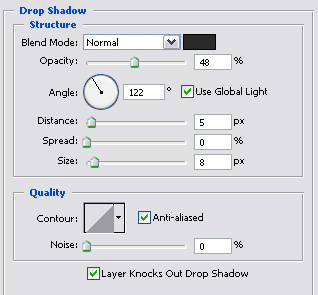
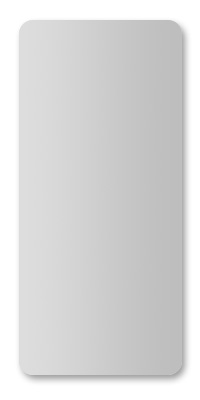
Now your box should look this way:
Now create a new document, 150x2 px, with white background; create a new layer, select the Line Tool, set it to 1px weight, uncheck the antialiased box in the top bar, choose #525252 as foreground color,zoom to 300% and draw a line from a side to the other of this thin document.
Now make a new layer and draw another line like the previous one but choosing #B5B5B5 as foreground color; draw this line just 1 pixel below the other one so both the 2 pixels in height are filled.

Click on the light grey layer and press CTRL+E so the 2 line layers are merged, now resize this document window so you can see both the documents, choose the move tool and drag the just merged layer in the other document containing the box (if you don't see anything in the box document make sure that the just dragged layer is on the top of all the others, if not, move it up). Move it around until you find a placement that fits the design you want, then duplicate the layer several times and move each of them down until you have all those you need.
Remember that you can play with the lines opacity to obtain different results: