Let's start creating the pattern we'll use to reach our final result.
Create a new document 1 x 2 px, transparent.
Zoom in to 1600% (the maximum allowed) and pick the Pencil Tool and set its size to 1px.
Now choose black as foreground color (you can simply press Don your keyboard) and draw a dot in the document we just created.

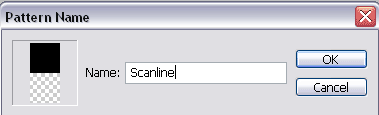
Now hit Edit > Define Pattern, name it Scanline and press OK.
Now close the 1x2 image we just created and open the image you want to apply the effect to (you can use the following one if you are just following this tutorial and have no real need).

Open this image in Photoshop, it will be put in a new document, in the Background Layer.
Create a new layer and hit Edit > Fill, choose pattern and select the Scanline pattern.
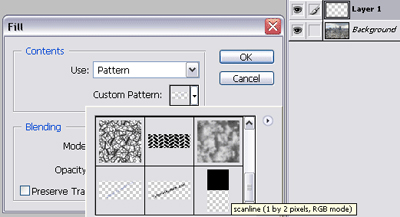
Now you should have this
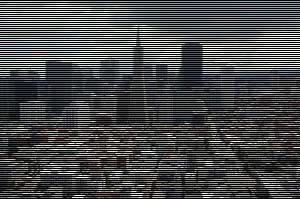
Now you can play a little with the opacity of this layer and the result will change a lot:
32% Opacity
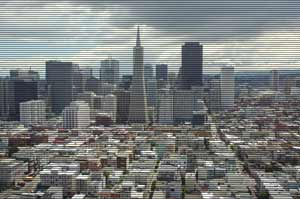
11% Opacity: