Open a new document with white background, is used a 300px x 300px document(it can be of any size, we only use it as background while designing).
Create a new Layer and name it "gradient", pick the Rectangular Marquee Tool and make a selection of the size you want your button to be: mine is 113 x 29.
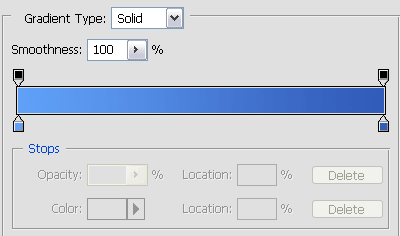
Now choose the Gradient Tool, be sure to select the Linear Gradient and create a gradient like this one
and draw it from top to bottom into the selection we just made, hold Shift Pressed while dragging the mouse to be sure to draw straight:
this is what your should have now.

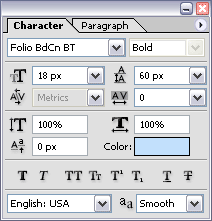
Select the Text Tool and click on the button: a new layer is created and you can type your button text here. I chose these settings for my font and the color is #C2E0FC:
Now we'll see several ways to obtain glossy effects;
First Way:
Create a new layer, set white as your foreground color, (be sure to have the button still selected, if not hold CTRL pressed and click on the Gradient layer) select the Rectangle Tool and draw a white rectangle that overlaps the upper half of your button

then lower the opacity of this layer to 20%

Second Way:
Create a new layer, set white as your foreground color, (be sure to have the button still selected, if not hold CTRL pressed and click on the Gradient layer) select the Elliptical Marquee Tool and choose the Subtract from Selection mode Create a new layer, set white as your foreground color, (be sure to have the button still selected, if not hold CTRL pressed and click on the Gradient layer) select the Subtract From Selection mode:
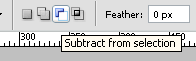
and draw an ellipse like this:
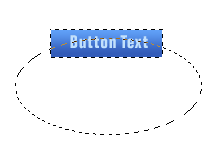
after you release your mouse button you should have this selection:

Fill it with white and lower the opacity of this layer to 35%

Third Way:
Create a new layer, set white as your foreground color, (be sure to have the button still selected, if not hold CTRL pressed and click on the Gradient layer) choose the Linear Gradient Tool and create a gradient like this:
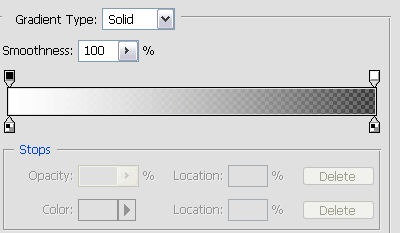
now draw from top to bottom and you should reach a result like this (you might need to stop drawing before the button bottom as the white part might be too big, it is up to you to choose the result you prefer)

Now we'll add a 1 pixel border.
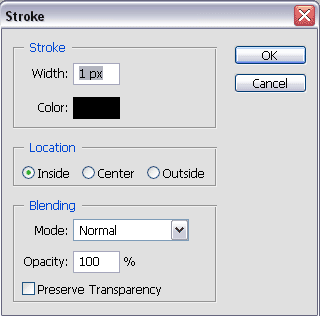
Create a new layer, pick the Rectangular Marquee Tool, click on the gradient tool holding CTRL pressed, then hit Edit > Stroke and put these settings:
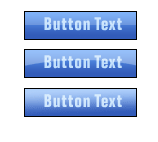
These are my final buttons: