Start by typing "hi" with Arial Black font having 120 point size and #FF0101 color

Duplicate the type layer by pressing control+j. Change the font color to #FFEB00.

Now, go to Filter > Distort > Ripple and apply these settings :
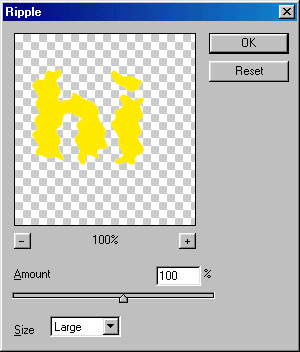

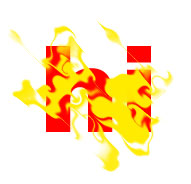
Press control+f for 8-9 times until you get something like this :
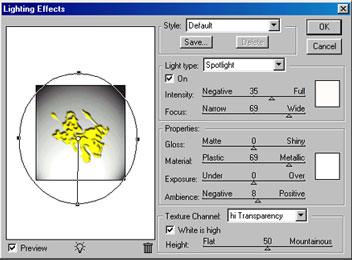
Now, go to Filter > Render > Lighting effect. Select "hi Transparency" in texture channel with these settings :
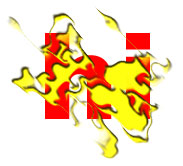
Press shift+ctrl+alt keys together, click in between two type layers to create a clipping mask.
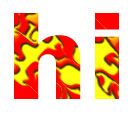
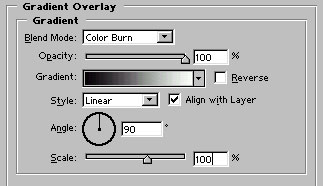
Now, click on the first type layer (the red colored layer) and apply these layer styles in it:
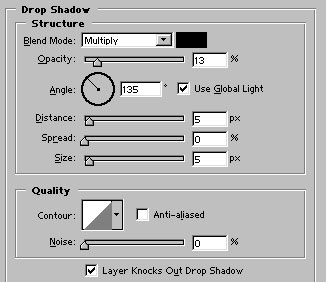
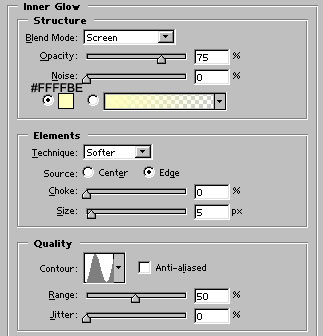
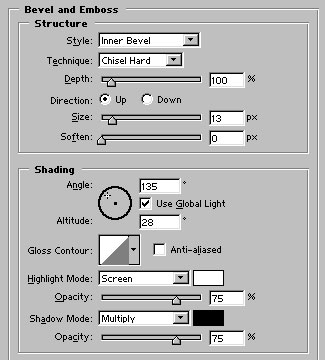
Your artistic text is ready :)