

1. Create a new Flash document.
2. Open the library: Window > Other Panels > Common Libraries > OF Buttons S1.
3. Open the library of your Flash document. (Ctrl+L)
4. Select the necessary type of the button.
5. Drag and drop the button's folder into your library.
6. Set the color of the button:
Change the color of "BASIS" and "CIRCLE" and the whole button will change the color.
This lets you easily select the necessary color for the button.
7. Select color, font, font size of "LABEL".
8. Duplicate "LABEL" and change the text in the library panel as many times as required.
Give them unique names (e.g.: LABEL_1..LABEL_N) according to the number of menu's points.
9. Duplicate the button in the library panel as many times as required.
Give them unique names (e.g.: BUTTON_1..BUTTON_N)
10. Select BUTTON_2 and double click on it.
11. Go to panel Timeline, to layer "LABEL", to the first Keyframe
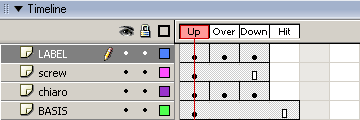
12. Select LABEL on the scene.
13. Press button "Swap" and swap instance of LABEL1 for LABEL2 on panel Properties
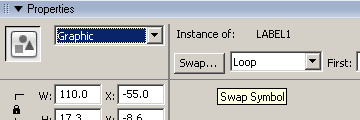
14. Repeat points 12-13 for all Keyframes of the layer "LABEL".
15. Repeat points 11-14 for the rest of buttons.
16. Drag and drop the buttons to the scene.
17. Align the buttons between each other.
18. Attach the action to the buttons.
19. Test the scene. (Ctrl+Enter)
Note: You can change the color of all buttons simultaneously if you change the color of "BASIS"
| Button's Folder | |||||||||
|
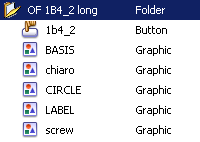
The structure of buttons can be changed.
Sample
