We'll begin this tutorial, by creating a new canvas at a size of 350 x 171 with c4b37b as the background color.

Select the "Text Tool" and use the below settings:
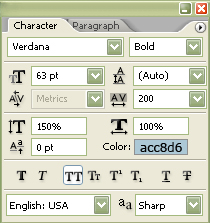
Now type your preferred text.

Now right click on the text layer in the Layers Palette and select, "Blending Options...". Now click on "Gradient Overlay".
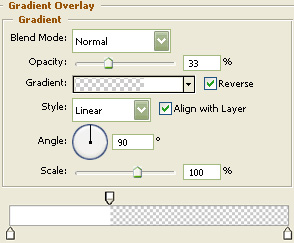
You may now click OK.
You should now have the below image.

Now "Ctrl" click the text layer to create a selection around it. Next, create a new layer and go to the main menu and select "Edit" then "Stroke" using White as the color at 3 pixels and on the inside. Then deselect the selection.

You should now have the below image.

Now right click on the stroke layer in the Layers Palette and select, "Blending Options...". Now click on "Stroke".
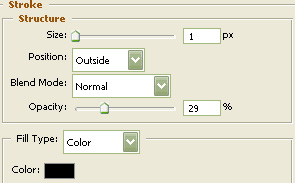
You may now click OK.
You should now have the below image.

Then, duplicate the text layer in the Layers Palette and drag the duplicated layer so it is just above the background layer in the Layers Palette. Name the duplicated text layer "Text 2" in the Layers Palette. Then change the color of the "Text 2" layer to 646569.
Now hold in the "Alt" key on your keyboard and press the down arrow key once then let go of the "Alt" key and press the right arrow key once. Do this a few times to get the below effect.

Next, create a new layer, then grab the "Polygonal Lasso Tool" and draw the below selections. For multiple selections, be certain to hold in the "Shift" key on your keyboard.
Change the foreground color to 353539 then go to the main menu and select "Edit" then "Fill". Name this new layer "Shading".

Now "Ctrl" click the top text layer to create a selection around it then go to the main menu and choose "Select" then "Inverse".
Next, be certain that the "Shading" layer is selected in the Layers Palette, then go to "Edit" and finally "Cut".

The Results!!!
I hope you enjoyed this tutorial.