We'll begin this tutorial by going to the main menu and selecting "File" then "New..." and typing 108 for the width and 107 for the height. Click "OK". Next, using the "Paint Bucket Tool" fill the canvas with 103471.

Now grab the "Rectangle Tool" and draw two squares with 1377cb as the color. Be certain to leave a 2 pixel space as shown below.
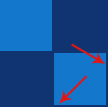
Then select the "Line Tool" and draw some 2 pixel lines as illustrated below. Holding in the "Shift" key on your keyboard while drawing them will help keep the lines straight.

Next, choose the "Custom Shape Tool" and draw your shapes. I used the below shapes which can be found in your Custom Shapes palette. I also used the same colors as there neighboring squares.

The Results!!!