


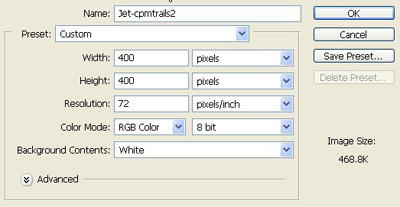
1. In the first step we will take a new file of Height = 400 pixels Width = 400 pixels and of resolution 72 dpi and in the RGB mode.
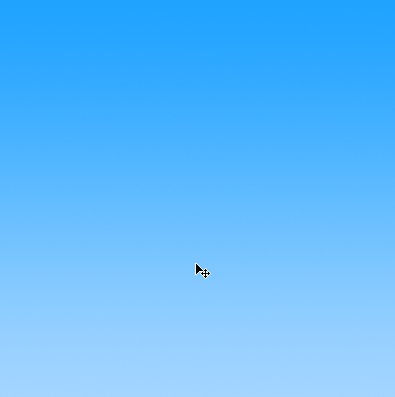
2. Make the color of the gradient to make the sky as shown

3. Fill the gradient by using the Linear style your Image will be shown like this:
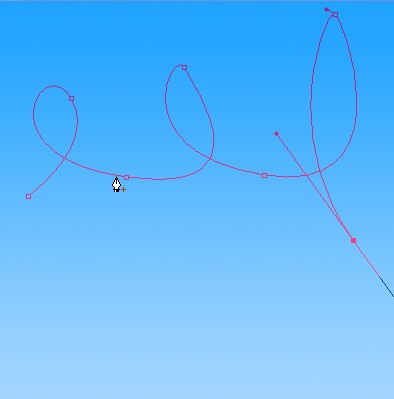
4. Now make the shape with the help of Pen tool make the shape of your creation or as shown below:
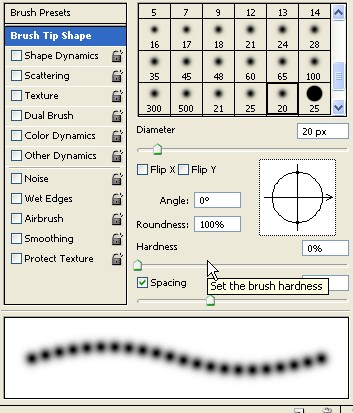
5. Now make the selection and take the brush of spacing 70% as shown in Image.
6. Use the brush on the selection as below in fig.
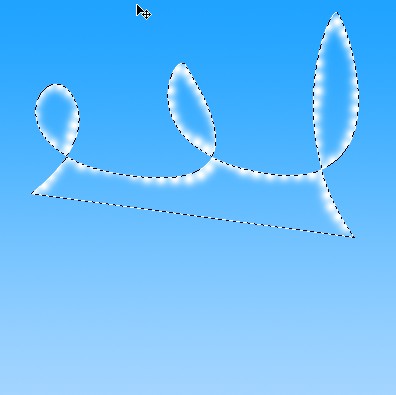
7. Deselect it.
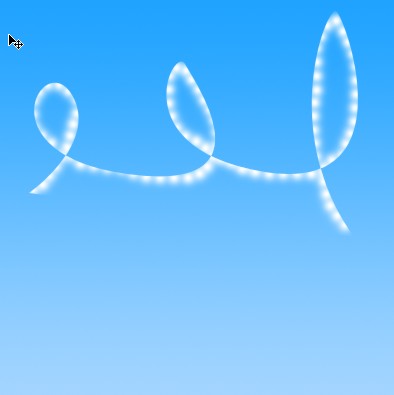
9. Now take the smudge tool to smudge it lightly as given below:
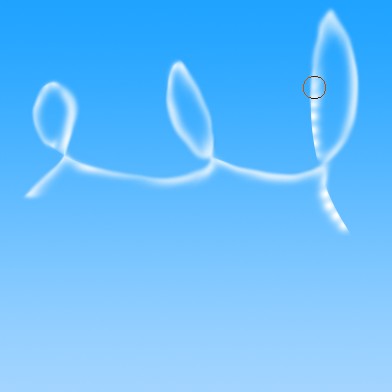
10. Your Image should be shown like this.
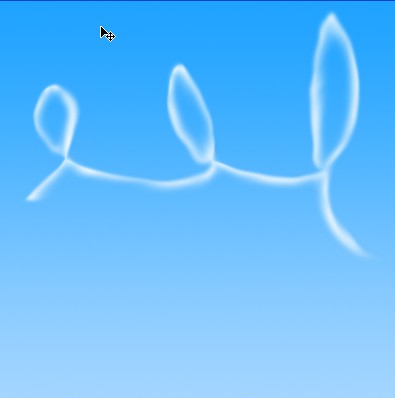
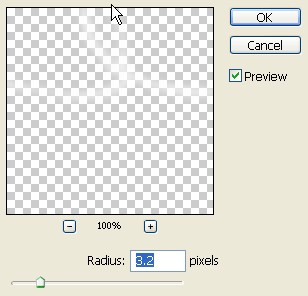
11. Now use the Filter>Blur>Gaussian Blur use the property as given below:
12. Your final Image will be look like this:

