

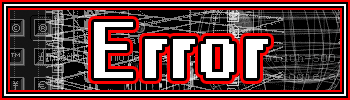
1. Take a sig where you want to put it on i took a real stupid sig i made a time ago you can use it if you want but ok you can also just put it on another sig.
2. Make a new layer be sure the new layer is the upper layer (layer >> new >> layer)
3. Select the new layer and fill it with Black

4. Take the polygonal lasso tool >>

5. Now cut the black layer into 2 pieces you can make a nice form in it if you want and than do cut
I got this now

6. Now make a new layer again and past there your cuted out piece , i think you should bring it on the right spot so it is almost whole black again i got something like this now

7. Now go to image ready
8. Now view the image what to do look down here
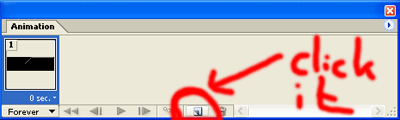
9. Now select one of the black parts and hold ctrl and move it to the place where it should go when the door is gonna open
10. Now select the other black part of the door and hold ctrl and move it to the place where it should go
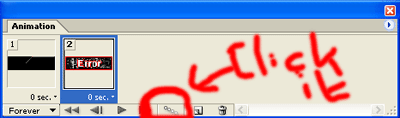
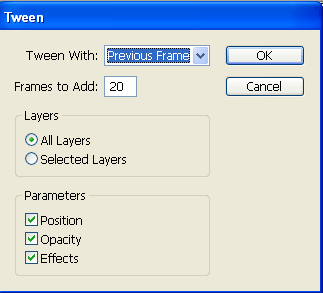
11. Now hit tween look at the pic
12. And use these settings
13. Now you can press the play button but you can also repeat the steps 9] to 12] again only now hold ctrl and drag the part to the middle to close the door.
14. You can improvise to the parts to let it look cooler because now it is a bit simple and it looks a bit nerd in my opinion
This is my result:

My result on a better sig and effects on the door:

I hope you all liked it and are able to use it.
