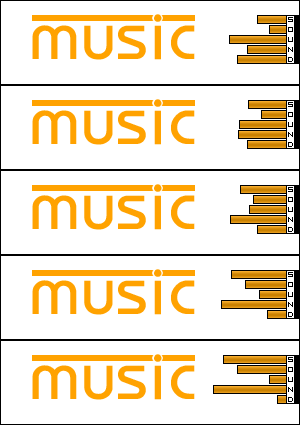
Open a new transparent document for this tutorial.
Step 1: Fill the background color with white. Select the pencil tool and create a 1 pixel black border around your image.

Step 2: Create some text towards the left side of the document, that has what your 'handle' or whatever you go by. Make this text orange.

Step 3: Press ctrl+alt+n to create a new layer. Name this layer "Sound Box". On the right side of the image, create a box with your rectangle marquee tool and fill it with white. Pick a nice pixel font from www.dafont.com and write "sound" vertically inside the box.
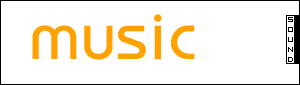
Step 4: Right click the "Sound Box" layer and go to blending options. Use these settings-
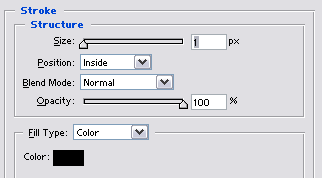
Step 5: Press ctrl+alt+n to create another new layer, and name it "Eq Bounce". Place this layer below your "Sound Box" layer. Then, right click it, go to Blending Options, and use these options.
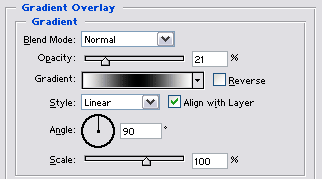
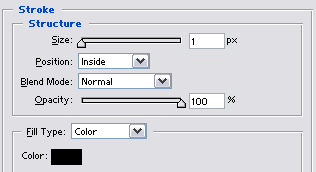
Step 6: Duplicate this layer a few times and move the duplicated layers so they are evenly spread next to the box.
Step 7: Click the "jump to image ready" option at the bottom of the tools palette.

Step 8: Move the "Eq Bounce" layers around so that they are not the same length.
Step 9: On the animation palette click the arrow, which will bring up a sub menu(if you'd call it that). The arrow is at the top right of the box. Once you are at the "sub menu" select "New Frame". On the new frame move the "Eq Sound" layers so that they are completely different(if they were long before, make them short etc). Click the "motion tween" button(it looks like 3 circles) and use these settings.
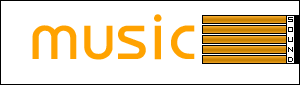
My finished product: