

Step 1
Create a new canvas 500x50 pixels
Step 2
Fill it with white
Step 3
Get your rectangular marquee tool and set the feather to 2

Step 4
Then make a selection like this and fill it with black

Step 5
Now get your rectangular marquee tool again and set the feather back to 0 (zero),
Step 6
Create a new layer, make a selection like below and fill it with any color

Step 7
Now create a few more layers, I made 2 extra, with the selection still selected just fill it with 2 different colors (both different layers you just created)
Step 8
Now select 1 of the 3 color layers and press ctrl + g, do the same with the other 2
Step 9
Well you have something like this (I moved the first 2 layers a bit 2 the left

Step 10
Switch over to ImageReady (ctrl + shift + M)
Step 11
Now the first frame in the animation window move all the 3 color layers to the left, so the just left the window
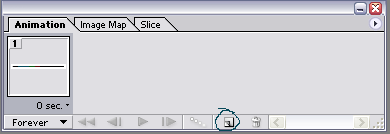
( when you don't see this window go to, window>> animation)
Step 12
Now in the animation window choose duplicate current frame
Step 13
On that 2nd frame move 1 of the color layers 2 the right
Step 14
Then choose the tween button with these settings
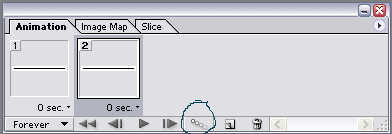
Sep 15
Now duplicate again the current frame (last 1), but now move the color bar on the first color layer to the left and the second bar to the right
Step 16
Hit the tween button again and use these settings:
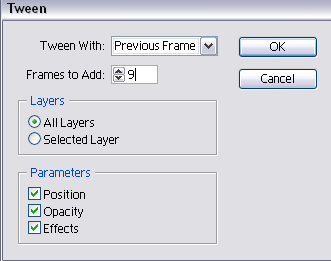
I got this

added a delay of 0.1 seconds
Step 17
Now you have to move bar 2 to the left, and you have 1 bar left so that has 2 go to the right and back, so let bar 2 stop in the middle, bar 3 go about 3/4 of the black bar and then tween with 9 frames again

Step 18
Now on a new frame move the 2nd to the left so it's out your sight and the 3th to the right, on a new duplicated frame
If you followed it right you have something like this

Step 19
Now the 3th bar must go back to the left
Step 20
Your done, this is my final image

Hope you enjoyed this tutorial.
