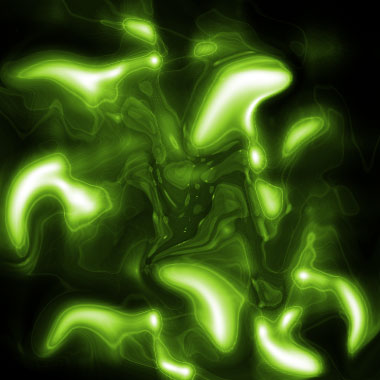
1. Make a 400x400 document. Now press "D" on your keyboard to reset the foreground and background colors to black and white. Make sure your background is black.
2. Go to Filter>Render>Lens Flare. We want to add a few of these:
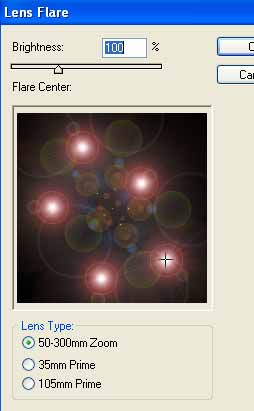
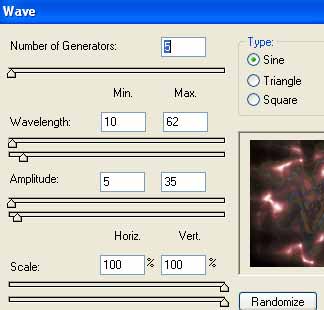
3. Now we want to go to Filter>Distort>Wave and use these settings:
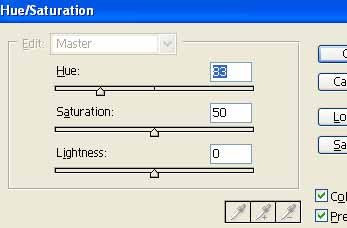
Apply your color now. Press Ctrl+U:
4. Duplicate the layer and set the blending mode Soft Light to the new layer:
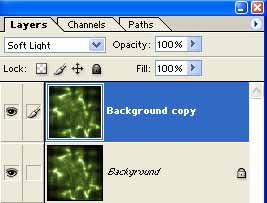
Emerge the 2 layers together now (Ctrl+E).
Now you got something like this:
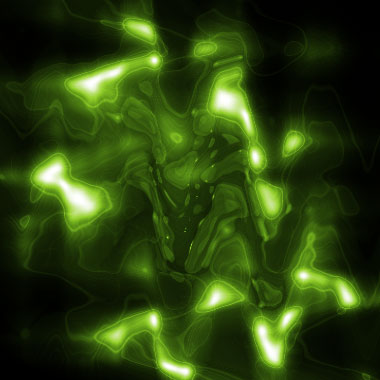
We can make it better by going to Filter>Liquify and smudging the bright lens flare parts around until you get something like: