1. Make a new document big enough to put the button on. Use any color you want for the background. I used #E7E8EA.
2. Select the
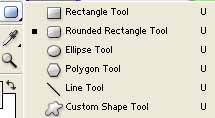
Make a new layer and now make the pill button shape:

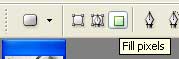
You want to make sure the Fill Pixels Option is on:
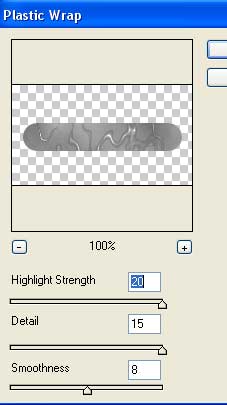
3. You want to go to Select>Load Selection. Once you have loaded the selection for the pill layer we want to add Filter>Render>Clouds then right after that add Filter>Artistic>Plastic Wrap and use these settings:
4. Duplicate the layer and set the blending mode to Hard Light.
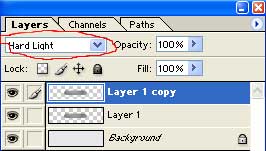
Now press Ctrl+E to merge both the layers together.
5. Now press Ctrl+U and set these Hue Settings:
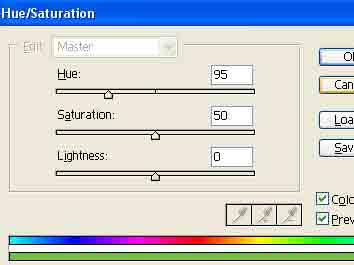
You can now deselect the pill if you haven't already. Right click the layer and go to Blending Options. And all all these settings:
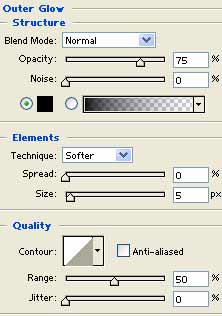
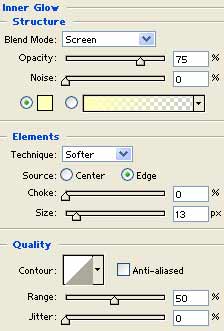
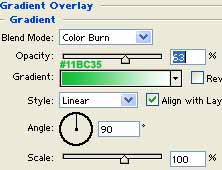
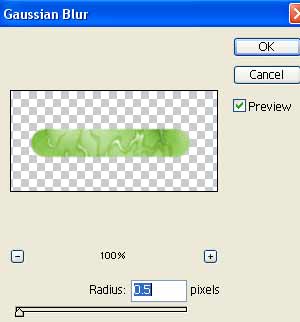
Now lets apply the final step to smooth out the edges. Go to Filter>Blur>Gaussian Blur:
There your done!