1. Make a 400x400 document. Now press "D" on your keyboard to reset the foreground and background colors to black and white.
2. Filter>Render>Difference Clouds then press Ctrl+F to apply it again.
3. Filter>Stylize>Fine Edges then Filter>Stylize>Solarize
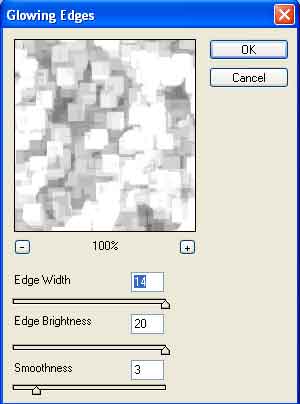
4. Apply Filter>Stylize>Glowing Edges and use these settings:
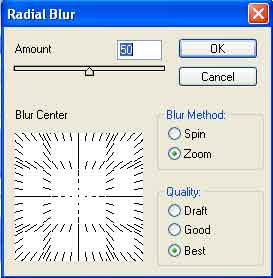
5. Apply Filter>Blur>Radial Blur and use these settings:
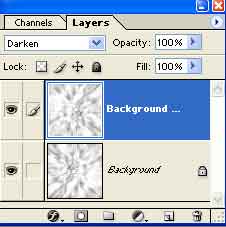
6. Duplicate the layer then go to Edit>Transform>Rotate 180. Now apply Darken as the layer blending mode:
7. Still on the duplicated layer press Ctrl+U and use these settings:
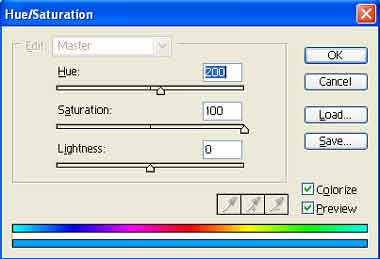
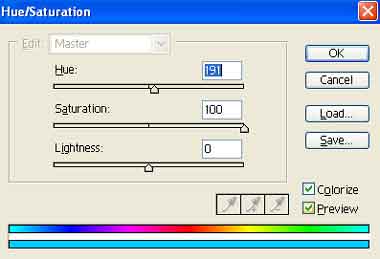
Now select the Background layer and press Ctrl+U again to change the color, use these settings:
8. Merge both of the layers by pressing Ctrl+E. Now apply Filter>Distort>Pinch and set it to 100%.
There your done, this is what mine turned out to look like: