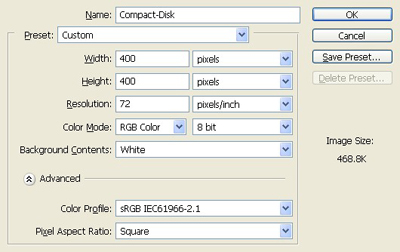
1. Take a new file of 400 pixels, 400 pixels, of the resolution of 72 dpi in the RGB mode.
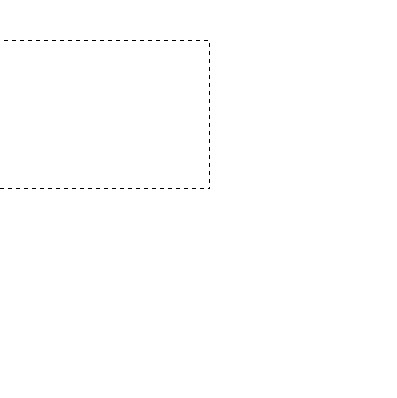
2. Make a selection with the rectangular marqee tool as in the image given below.
3. Make the gradient as given below in the image.
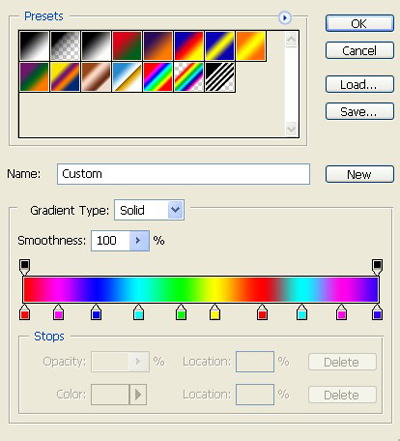
4. Apply the settings of the gradient which are given below.

5. Fill the gradient in the selection like this.
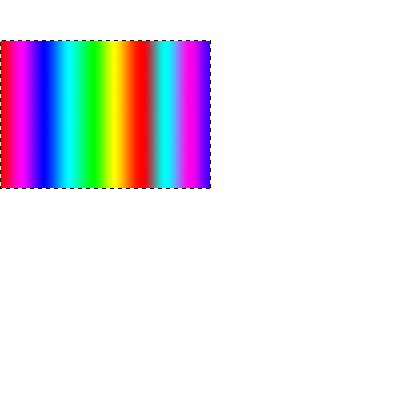
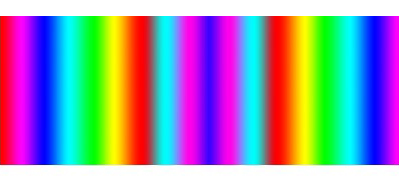
6. Make the copy of the layer and merge them all.
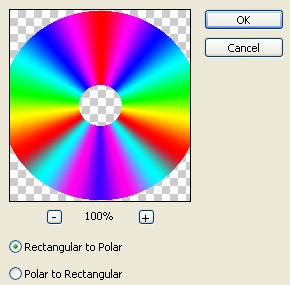
7. Goto Filter>Distort>Polar Coordinates and apply these settings.
8. Your image will be like this as in the image will be like this.
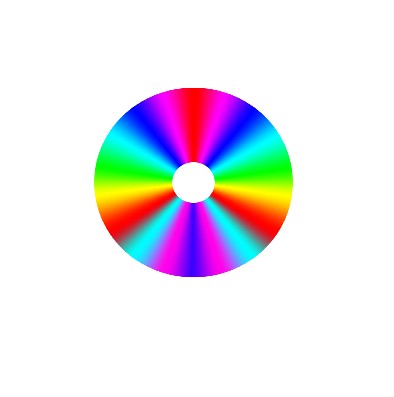
9. Click on the layer with the Ctrl to make the selection.
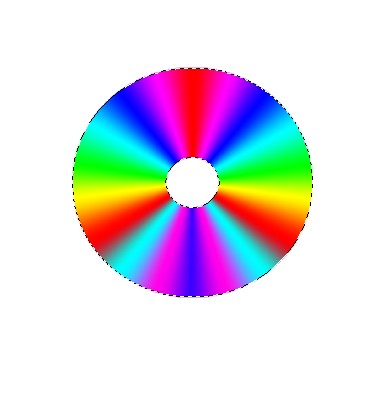
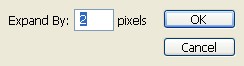
10. Goto Select>Modify>Expand with the setting which are given below.
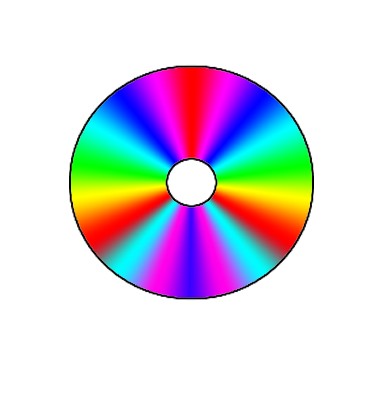
11. Make a new layer and fill black colour to it your image will be like this.
12. Goto Blending mode>Gradient overlay and apply these settings.
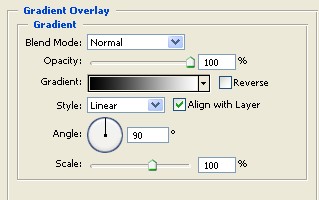
13. Image will be like this.
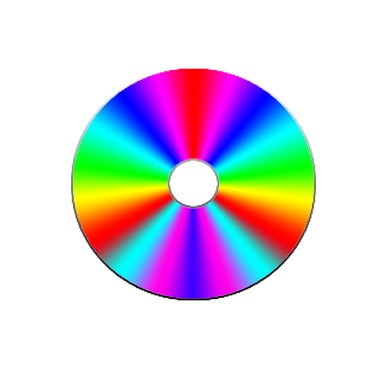
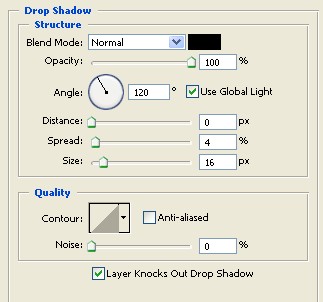
14. Goto Blending mode>Drop shadow and apply these settings.
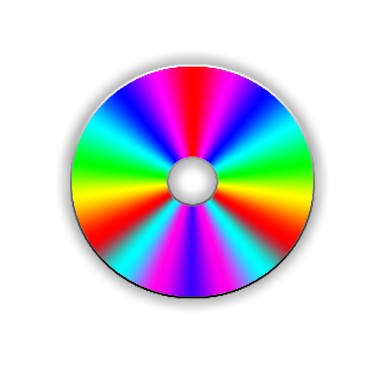
15. Your image will be like this.
16. Take an image which you want to fit in to it.
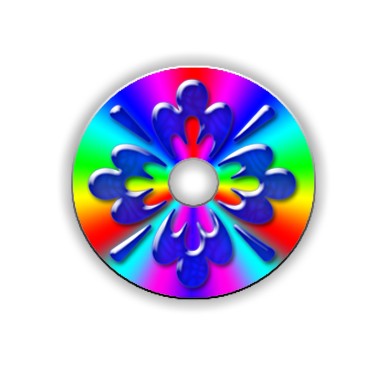
17. Make it opacity as in the image given below.
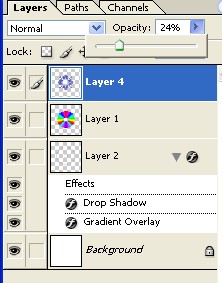
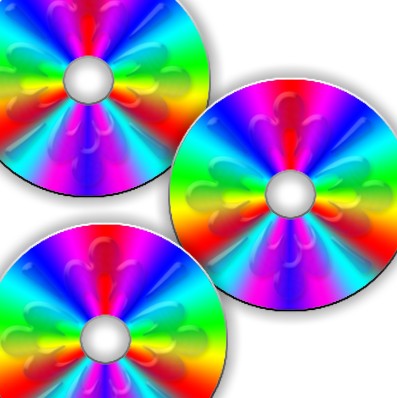
18. Merge all the layer and make the multiple copy of your C.D. as mine.