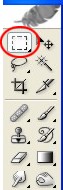
1. Select the Rectangular marquee tool from the Toolbar
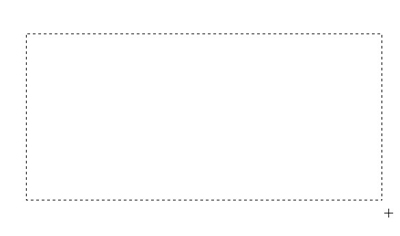
2. Create a new shape with the help of Rectangular marquee tool.
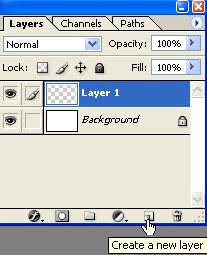
3. Now create a new Layer1 from the Layer window.
4. Fill with the color #D1F0FF. now Press Ctrl+D. After that select the Rounded Rectangular marquee tool from the Toolbar now create a new shape with help of Rounded Rectangular marquee tool after that Right click make selection . now create a new layer2 and fill with the white color
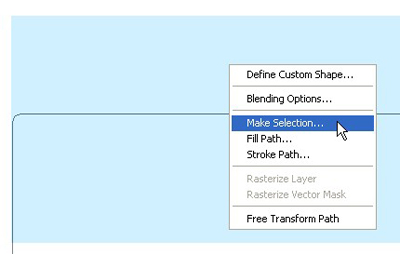
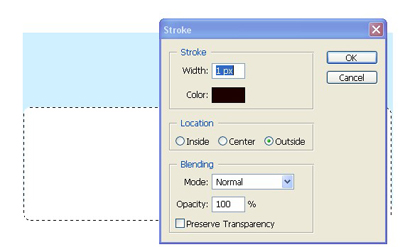
5. Here select the Rectangular marquee tool from the Toolbar now Right click > stroke
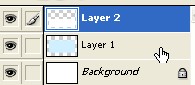
6. Now click on the Layer1 while pressing ctrl
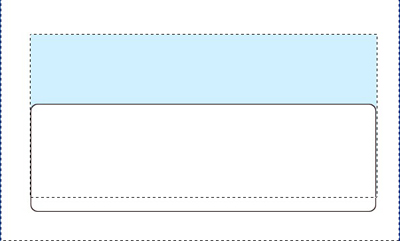
7. Now here press Ctrl+Shift+I and then press Delete in your keyboard
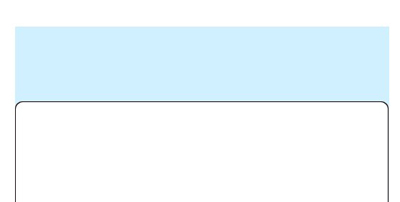
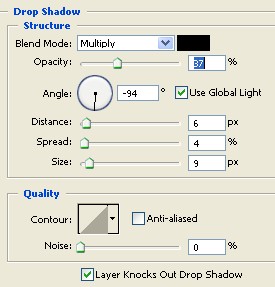
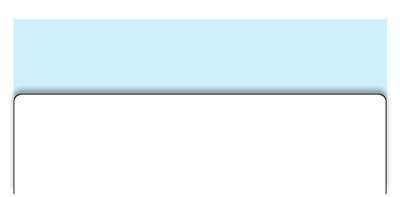
8. Now Double click on the Layer2 and then select Drop shadow from layer Style and adjust all setting according to the image below
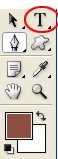
9. Select the Text tool from the Toolbar then type any words
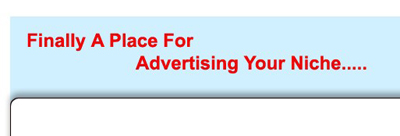
10. Double click on the Text layer select Gradient overlay from the Layer style.
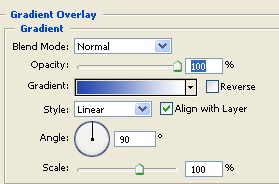
11. Now select Stroke with size-1 Opacity-100% click ok
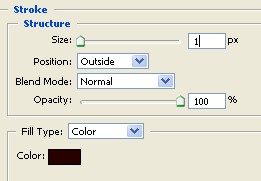
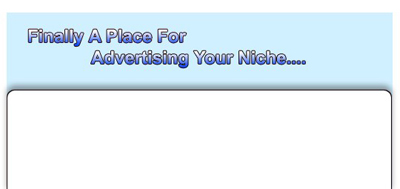
12. Work according to step 9to11 you can change the text color with the Gradient overlay
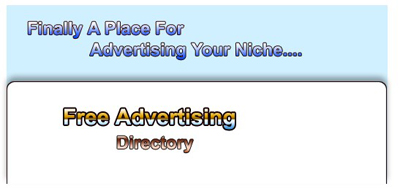
13. Here create a new Layer and then with the Rectangular marquee tool create a new rectangle after that right click select Stroke then Deselect.
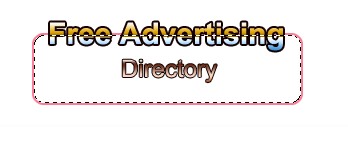
14. Create a new Layer with the help of Rectangular marquee tool create a new shape fill with any color and then press Ctrl+T now turn the new shape as shown below and then press Enter
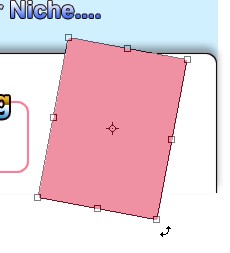
15. Type any words with the help of Type tool

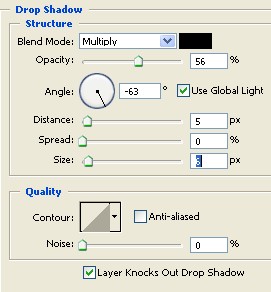
16. Double click on the Layer4 and then select Drop shadow and choose all setting according to the image below
17. Final Image.