1. First of all open a new document 400x400pixel , File > New
2. Here see below . Click on red circle no1 after that click on red circle no2 now click on red circle no3 .
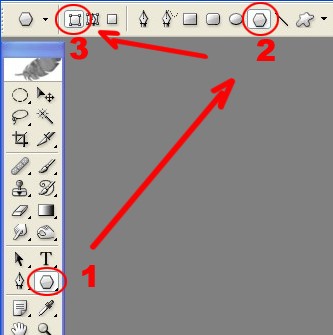
3. Here click on icon which is shown with the red circle Now select star from there
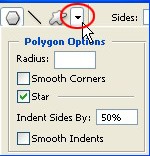
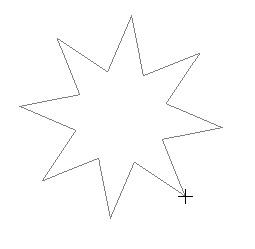
4. Drag with the help of mouse and create a new star shape
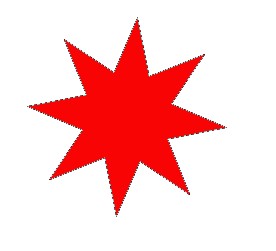
5. Now go to Filter > Distort > Twirl = Angle:50

6. Here press Ctrl+j to make a copy now click on the copied layer while pressing ctrl for selection and then fill any color
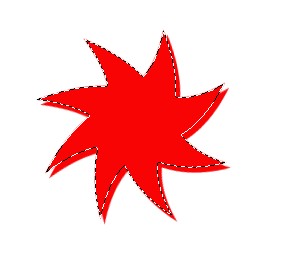
7. Here press Ctrl+T and with the help of mouse make the transform's corner round and then press Enter
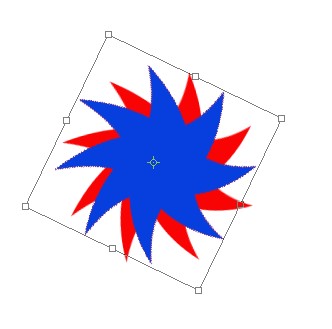
8. Here double click on the copied Layer for Layer style
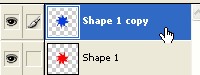
9. Select Drop shadow from the Layer style and choose all the setting according to the image below
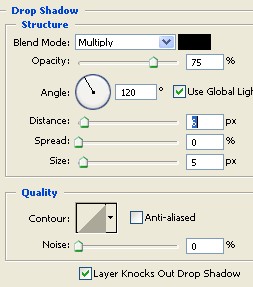
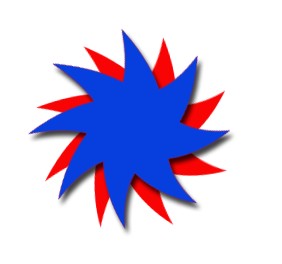
10. Now click on the Custom Shape Tool icon
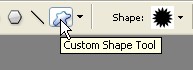
11. Now here click on the Custom shape picker which is shown with the red circle
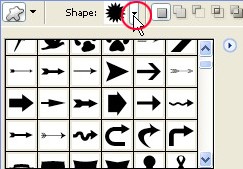
12. Now from here you can select any shape as shown below
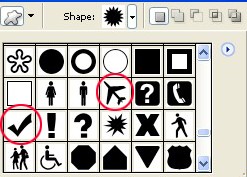
13. Here drag the shape with the help of mouse and create new shape as shown below