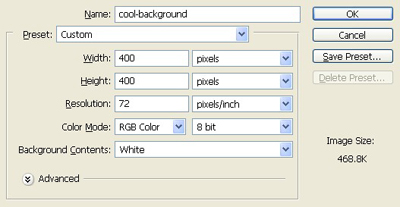
1. Take a new file of 400 pixels, 400 pixels of resolution in the RGB mode.
2. Choose the gradient settings which are given below.

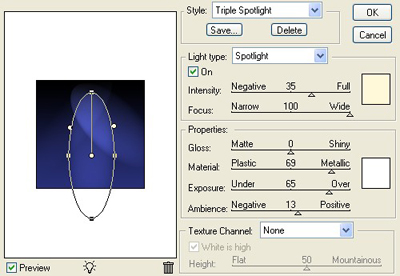
3. Goto Filter > Render > Lightning effect and use the settings which are given below.
4. Make the copy of the copy of the layer and rotate it 180* angle change its mode to lighten.
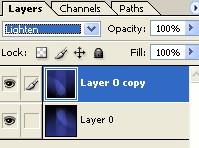
5. Make the copy of the copy of the layer and rotate it 90* angle change its mode to lighten.
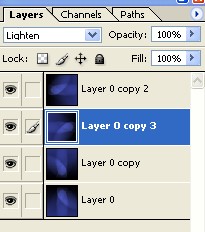
6. Your image will be like this.
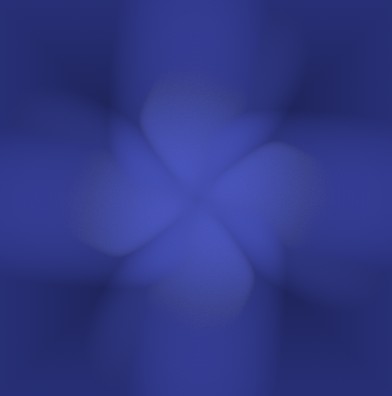
7. Press Ctrl+Shift+L and your image will be like this.
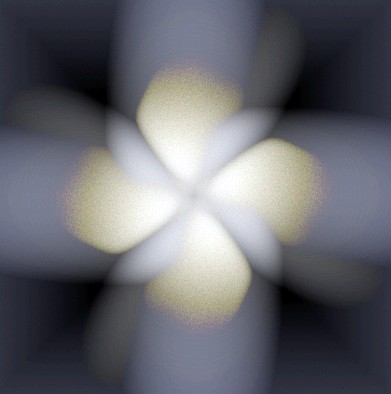
8. Goto Filter > Artistic > Plastic wrap and apply these settings which are given below.
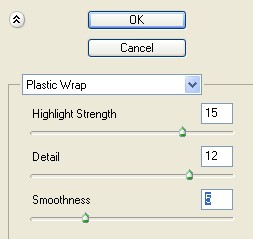
9. Your image will be like this.
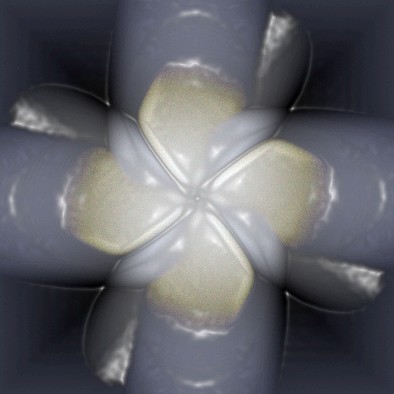
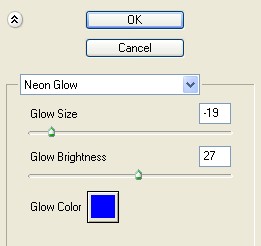
10. Goto Filter > Artistic > Neon glow and apply these settings which are given below.
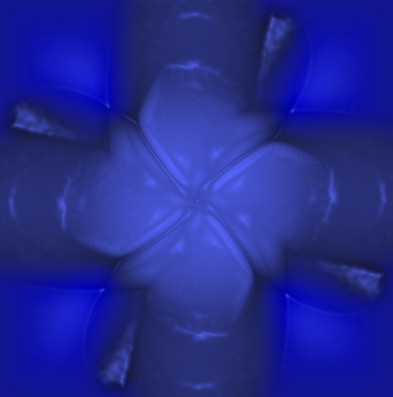
11. Your image will be like this.
12. Make a selection with the Elliptical marquee tool.
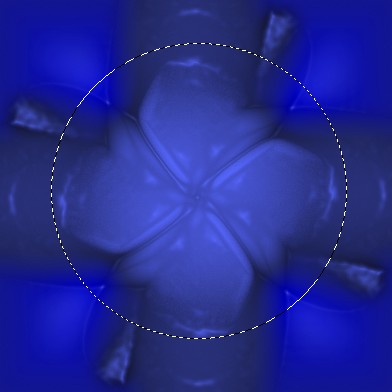
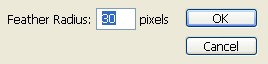
13. Give a feather of the given quantity.
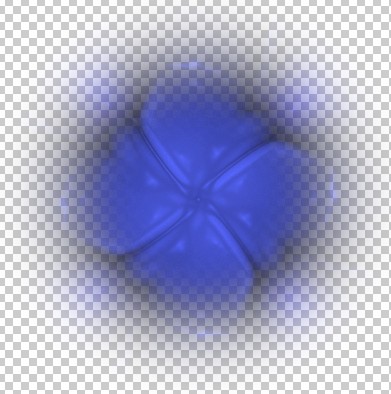
14. Your image will be like this.
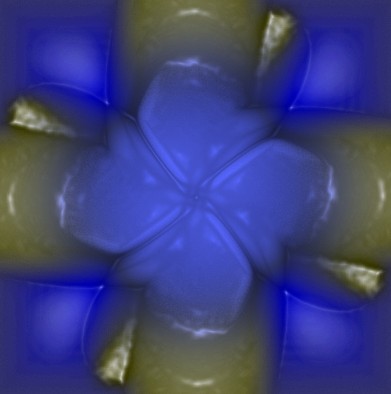
15. Select the earlier image and press Ctrl+Shift+L and your image will be like this.
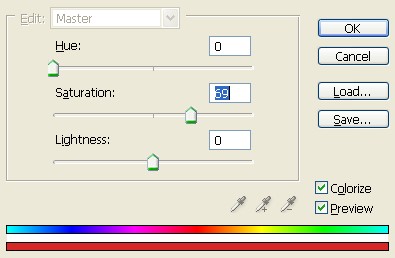
16. Press Ctrl+U and apply the settings which are given below.
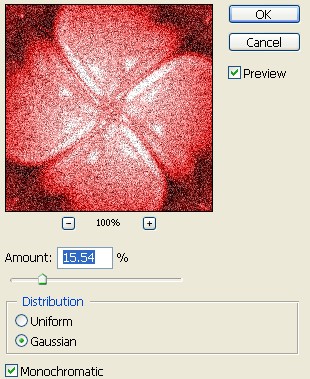
17. Goto Filter > Noise > Add Noise.
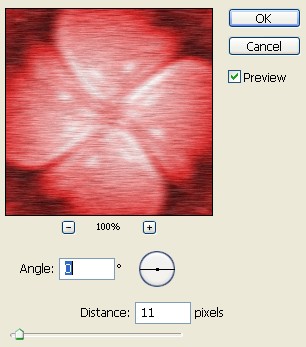
18. Goto Filter > Blur > Motion blur.
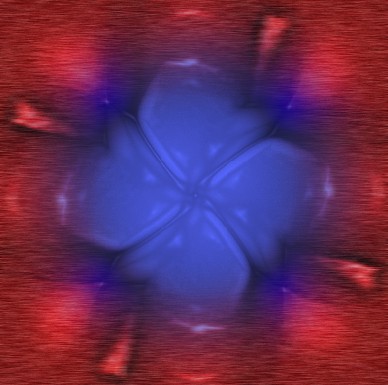
19. Your final image will be like this.