1. First of all open a new document here i have used document size 400x400pixel ,resolution:96,RGB color mode
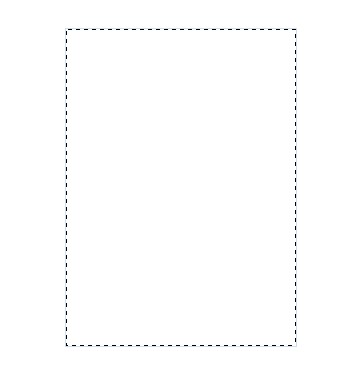
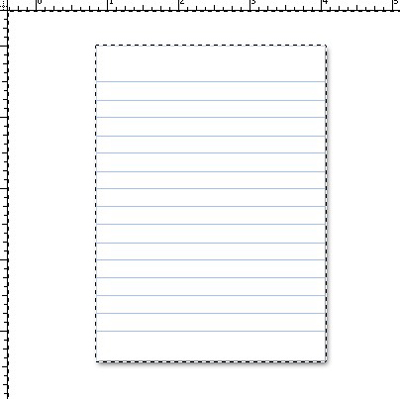
2.First,create a new layer now Create a new rectangular help by Rectangular marquee tool as shown below after that Right click select the Stroke .Width:1pix, location-outside,opacity-50%, color code# ADC7E8 now deselect or Press Ctrl+D
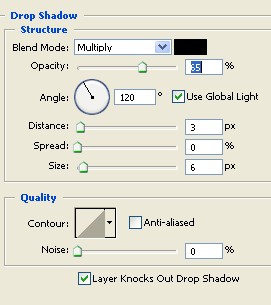
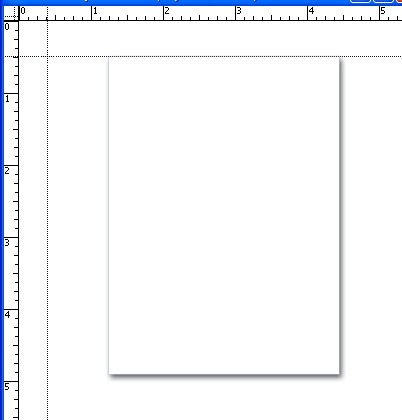
3. Double click on the Layer1.For Layer style now select the Drop Shadow choose the setting below

4. Press "R" in your keyboard
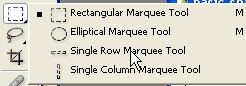
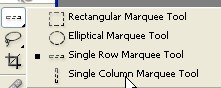
5. Select the Single Row Marquee tool in your Tool bar
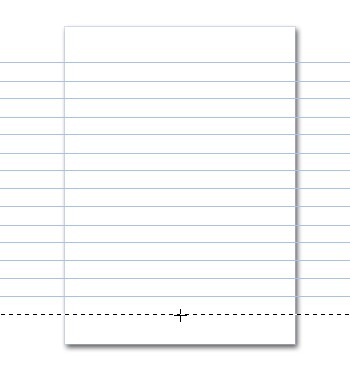
6. Create a new layer2 , now create lines and fill the color #98B9E1, as shown below
7. Press 'Ctrl' key and click on layer1 for selection
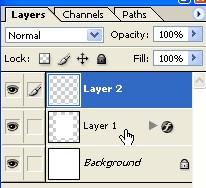
8. Now here , press Ctrl+Shift+I ,For inverse and press Delete key in your keyboard .
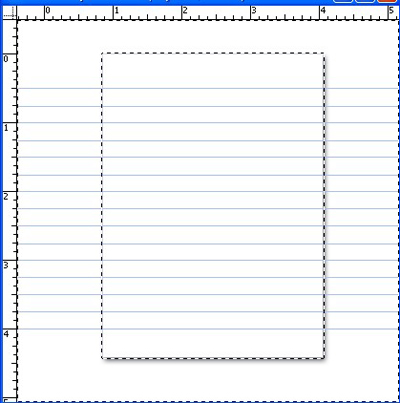
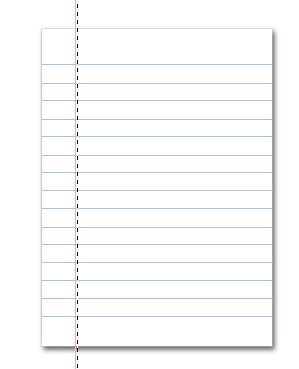
9. Now again , select The Single Column Marquee tool and create new lines ,fill the color#F8A8B7 .As shown below
10. Now here , create a new Layer3, and create a new circle and fill the any nice color after that double click on this layer and select the Bevel and Emboss . After done all this select layer2 and press Ctrl+E .

11. Create a new shape help by Lasso tool ,as shown below .Now press Delete key
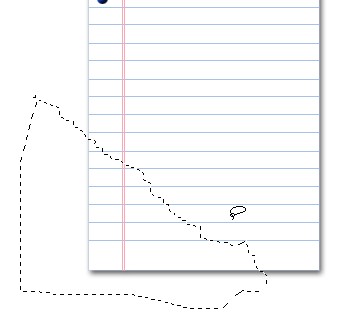
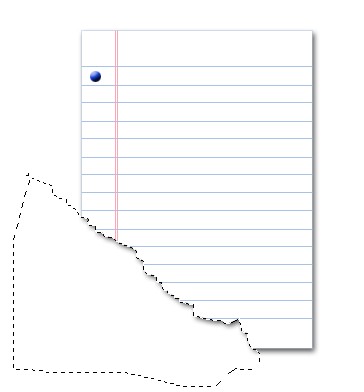
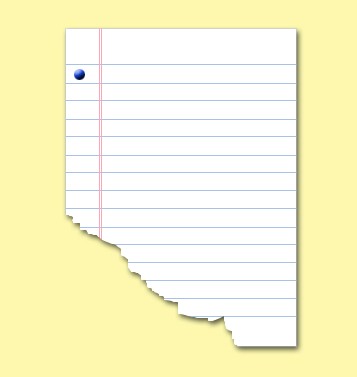
12. If you want than fill the Background any nice color . Now Our image has been completed . as shown below