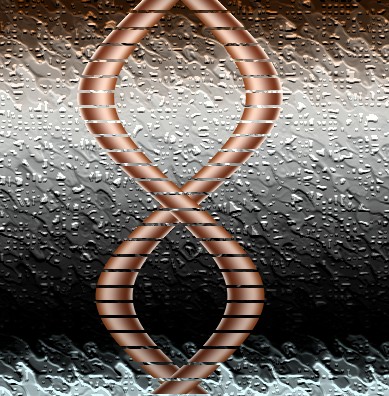
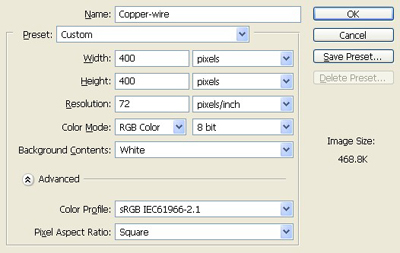
1. Take a new file of 400 pixels,400 pixels, of resolution 72 dpi in the RGB mode.
2. Make a selection with the rectangular marquee tool as shown in the image below.

3. Choose the settings for the gradient which are given below.

4. Fill the gradient in the selection as shown in the image below.
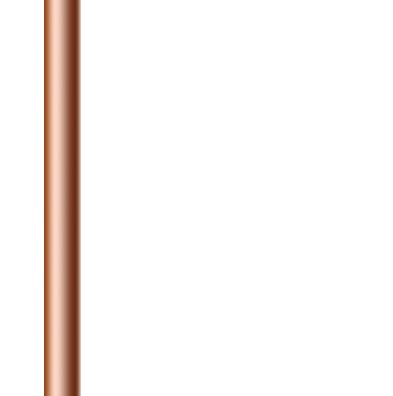
5. Now make a selection as shown in the image given below and delete the area from it.
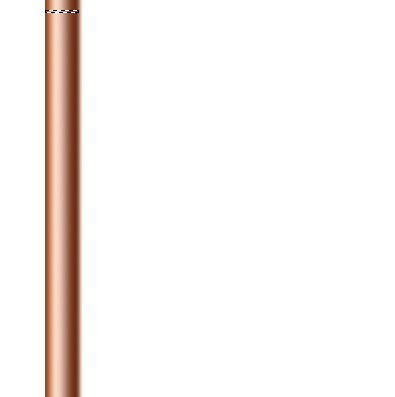
6. Make your image as similar to mine by deleting the area from it.
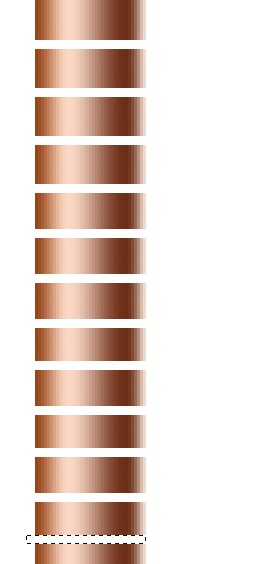
7. Your image will be like this.
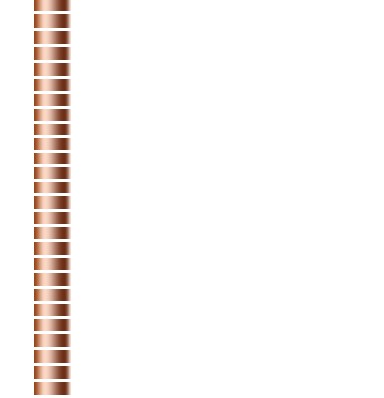
8. Goto Filter > Render > Lightning effect and apply the settings which are given below.
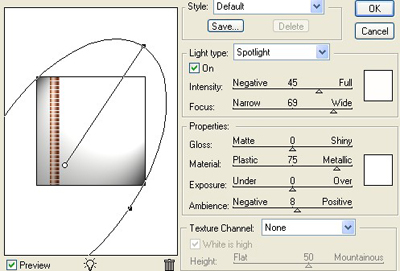
9. Your image will be like this.
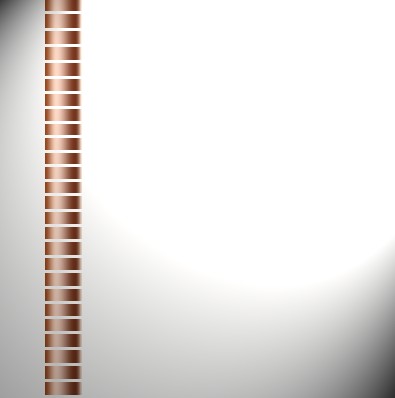
10. Goto Filter > Distort > Shear and apply these setting s which are given below.
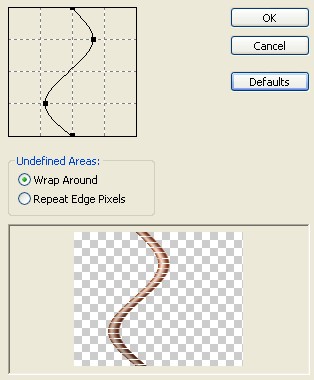
11. Your image will be like this.
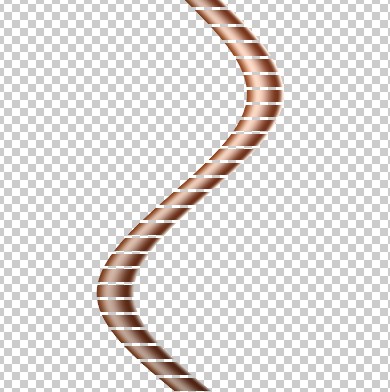
12. Make the copy of the layer and flip horizontal like this.
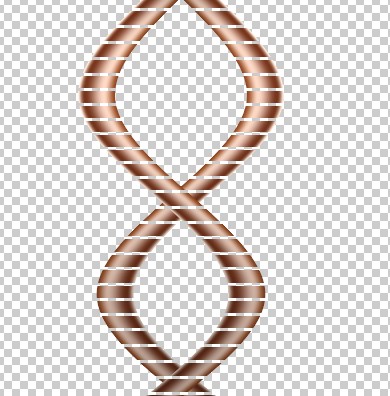
13. Make the settings of the gradient and apply the settings which are given below.

14. Make a new layer and fill the gradient in it.
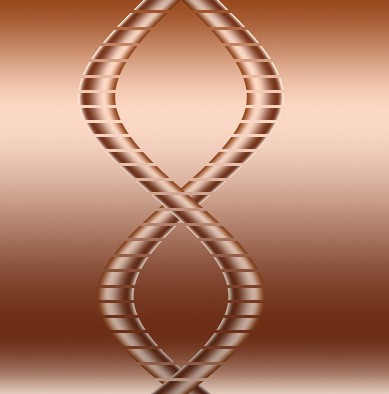
15. Press Ctrl+shift+L to make your image like this.
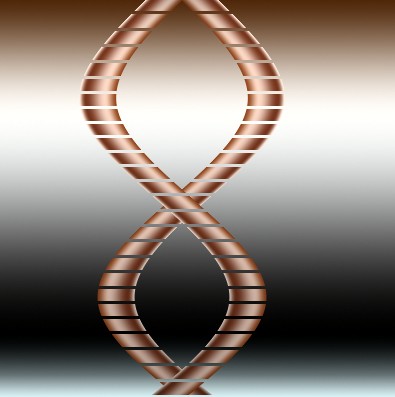
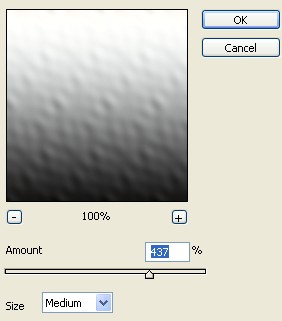
16. Goto Filter > Distort > Ripple of the settings which are given below.
17. Press Ctrl+F for more filter and your image will be like this.
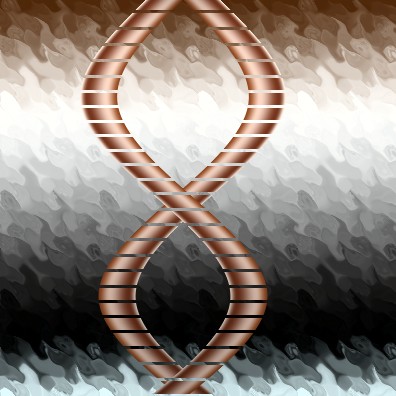
18. Goto Filter > Texture > Mosaic tiles and apply the settings which are given below.
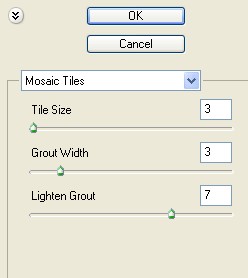
19. Your image will be like this.
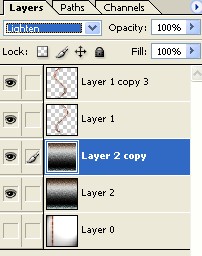
20. Make the copy of the layer and apply the blending mode which are given below.
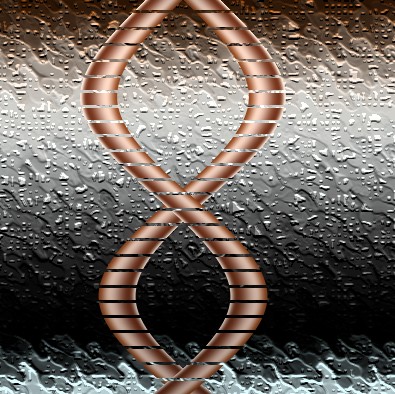
21. Your image will be like this.