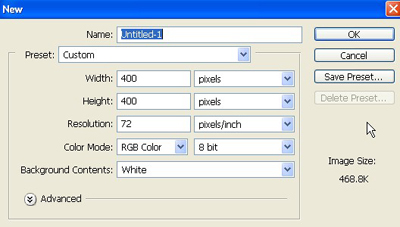
1. Firstly I have taken a new file of height = 400 pixels, width = 400 pixels and resolution of 72 dpi in the RGB mode.
2. Fill the new document with color black.
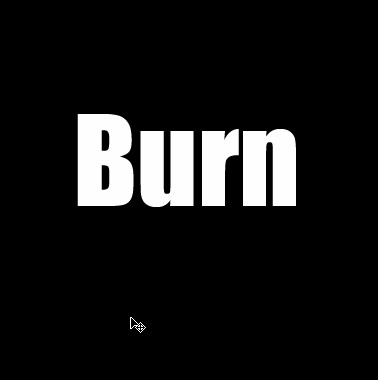
3. Now type any word you like, make sure the font color is white.
4. Now copy your text layer.
5. Now arrange the layers so they look like this.
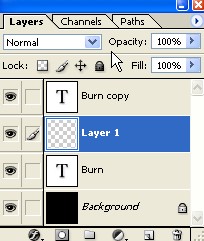
6. Fill the new layer with the color black.
7. Now we are going to merge the text copy layer and the new layer Select the text copy of the text layer, click layer, Merge down, your layer menu should now look like this.
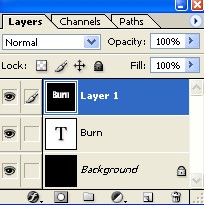
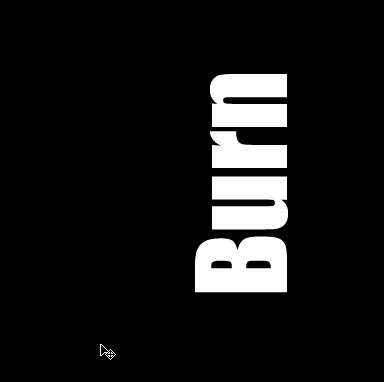
8. Select layer1 click Image > Rotate Canvas > 90'CCW.
9. Your image will look like this.
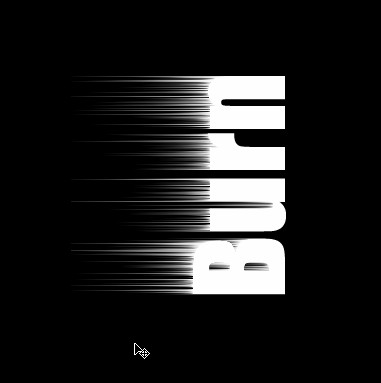
10. Go to the Filter > Stylize > Wind.
11. Click Filter > Stylize > Wind then do it one more time . Your tex twill look like this.
12. Select the layer1 click Image > Rotate Canvas > 90'CW.
13. Your image will look like this.
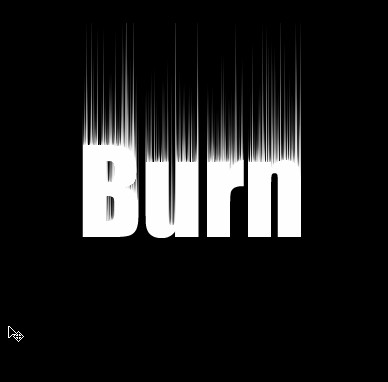
14. Click Filter > Blur > Gaussian Blur Apply the following settings.
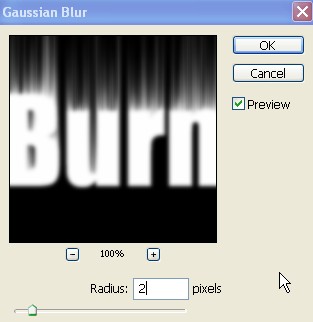
15. Your image will look like this.
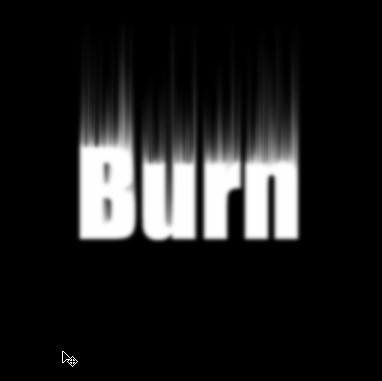
16. Lets add some color, click Image Adjustments, Hue/Saturation Apply the following setting.
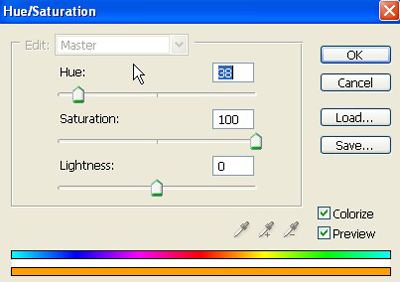
17. Your image will look like this.
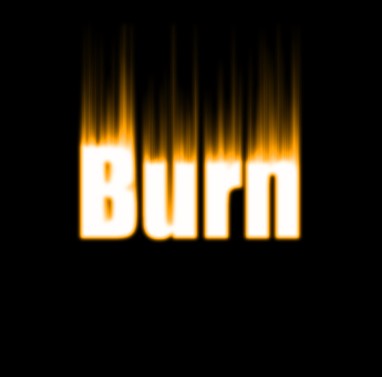
18. Lets add some color to Layer1 copy. Select layer1 copy click Image Adjustments, Hue/Saturation Apply the following setting.
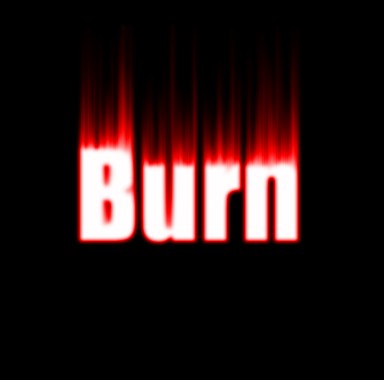
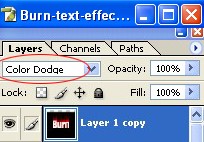
19. Now change the blending mode of Layer1 copy. Select Layer 1 copy, change the blending mode to Color Dodge.
20. Your image will look like this.
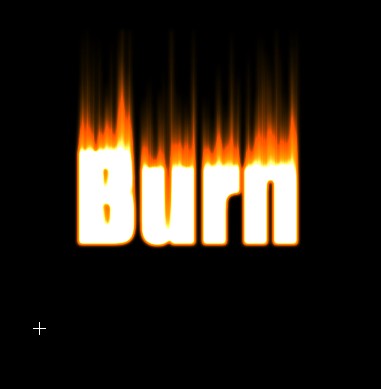
21. With Layer Copy1 still select click layer, and click Merge down.
22. Now arrange the layers in the layer menu to look like this.
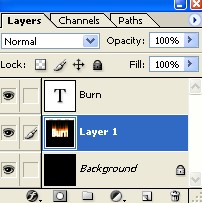
23. Select the text layer and highlight the text.
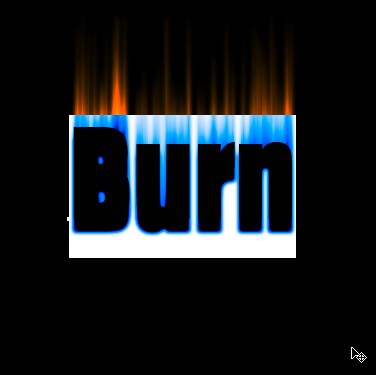
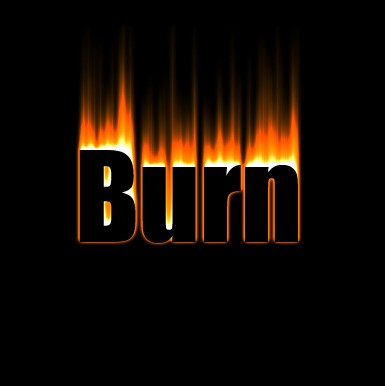
23. Your final image will look like this.