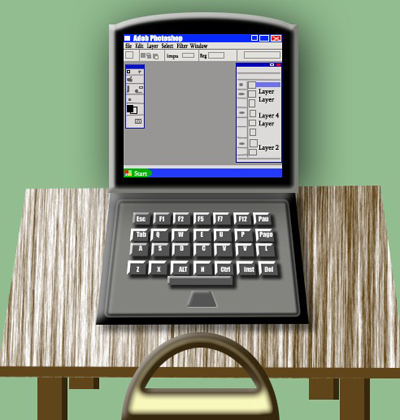
1. First of all open a new document . Here I have used document size 520 x 520 pixel and 96 resolution , RGBcolor mode
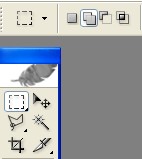
2. Select the Rectangular marquee tool from the Tool bar and use the setting below
3.First, create a new Layer1 from the Layer window . After that Create a new shape which is appearing below
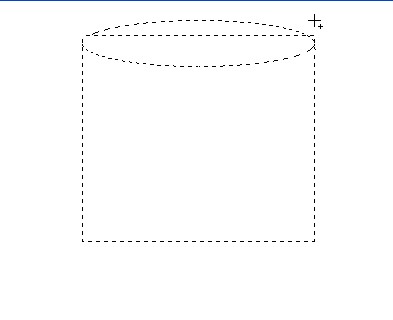
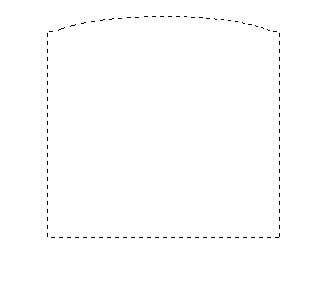
4. Now fill the Black color with press Alt+Backspace
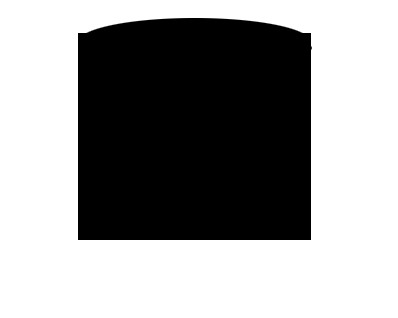
5. Create a new Layer2 from the Layer window, now create a new shape help by Rectangular marquee tool , after that fill the nice color #808080 . as shown below , now deselect
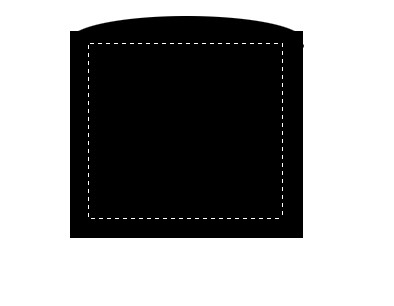
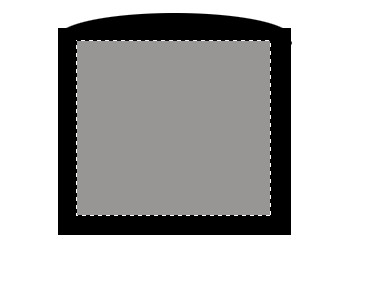
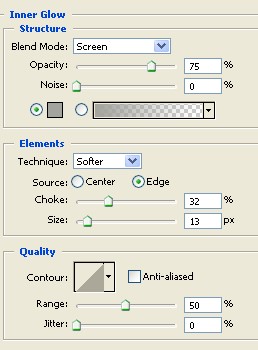
6. Select the Layer1 and double click on this layer now select the Inner Glow and use the setting below , don't click ok
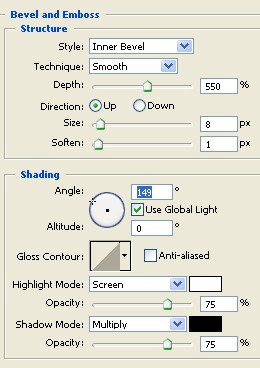
7. Now select the Bevel and Emboss , Use the setting below now click ok
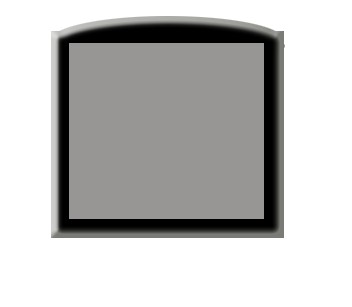
8. Your image should look like this . As shown below
9. Copy to the layer2 and Ctrl+Click on this layer now small this shape help by Transform selection , after that fill the White color . After done all this work create a new shape and fill the Blue color., which is appearing below
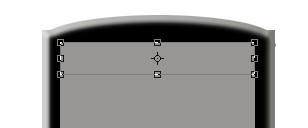
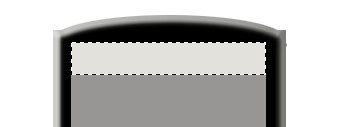
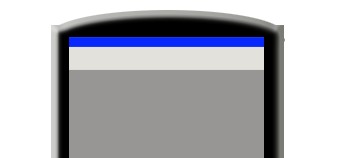
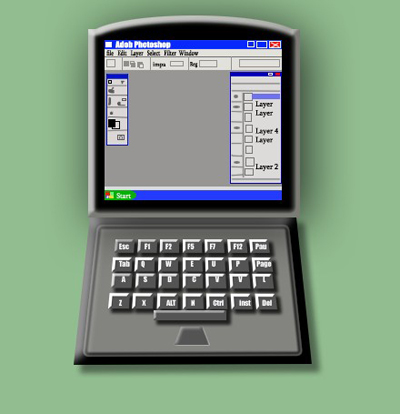
10. Now Type the any software name help by the Text tool . And create a new layer now create new lines help by the Single row marquee tool and Single column marquee tool . All this is appearing blow ,After that press the Shift+Ctrl+I now press the Delete key on your keyboard .
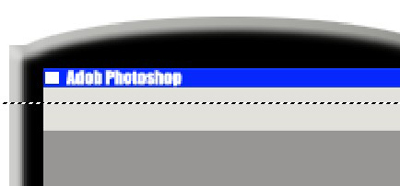
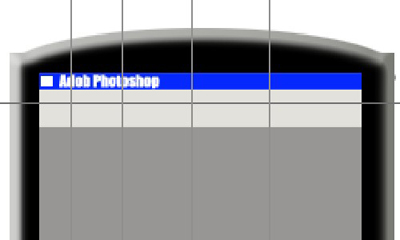
11. Here Create new shape help by the Rectangular marquee tool , As shown below
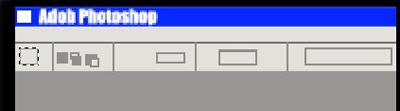
12. Create a new shape help by the Rectangular marquee tool now right click and apply the stroke fill the blue color . As shown below
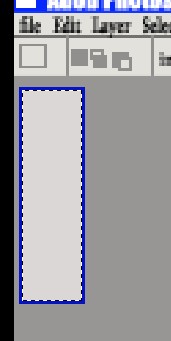
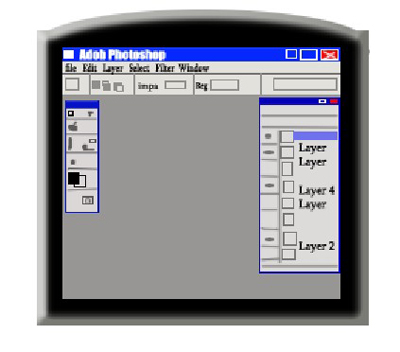
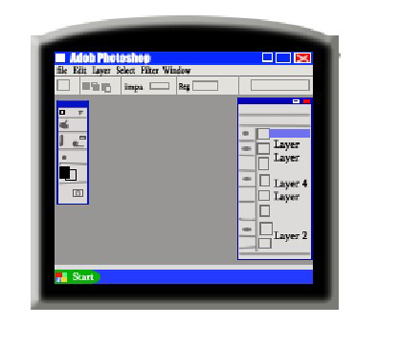
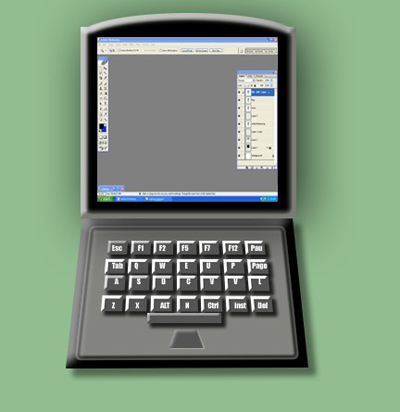
13. If you want than You acheave Computer screen help by the Print screen key on your keyboard . Which is appearing below . Here set the image help by the Transform selection
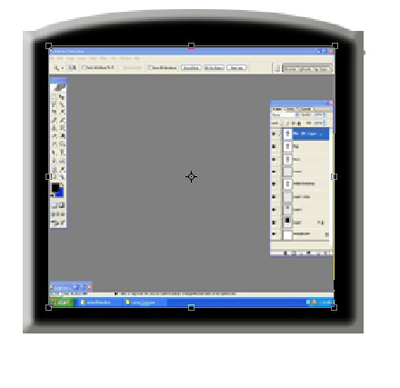
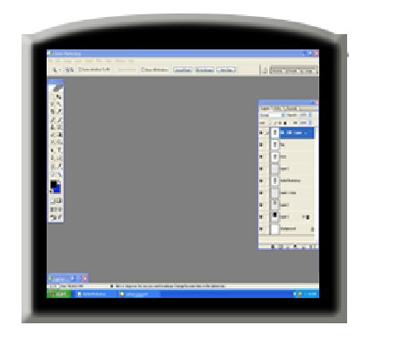
14. Now here create a new layer , and create a new shape help by the Rectangular marquee tool and fill the nice color #4F4F4C, As shown below
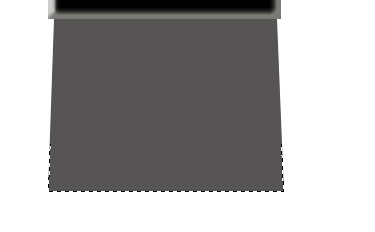
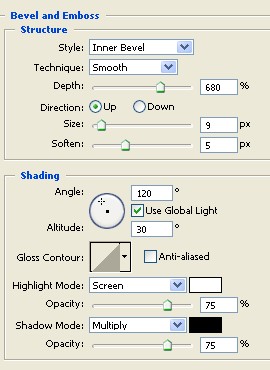
15. Double click on this layer and select the Bevel and Emboss from the Layer style and now use the settings below
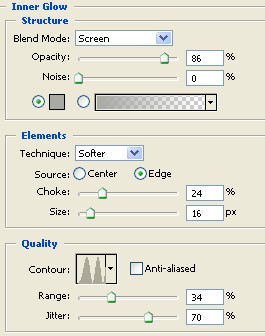
16. Now select the Inner Glow and apply the following settings . As shown below
17. Now your image should look like this
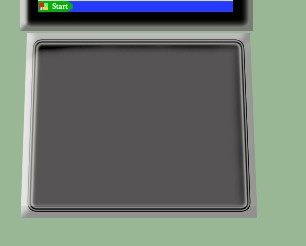
18. Create a new layer from the layer window and now create a new shape help by the R.M. tool after that fill the nice color #40403D
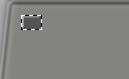
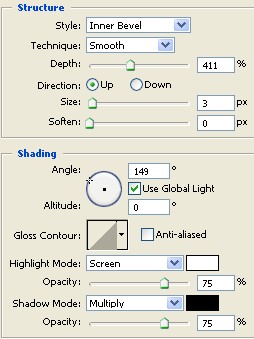
19. Double click on this layer and select the Bevel and Emboss . Apply the following settings
20. Press the Ctrl+J for copy paste and slide the image help by the Move tool . As shown below
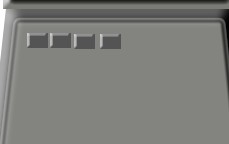
21. At last select the Layer of all over and Press the Ctrl+E for merge layer . As shown below
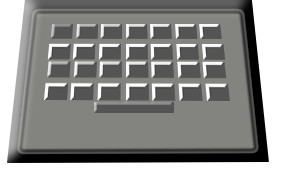
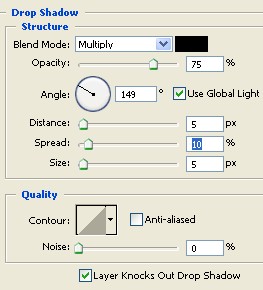
22. Double click on this layer and select the Drop Shadow from the Layer style and Use the setting below
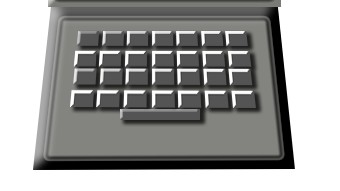
23. Now your image should look like this
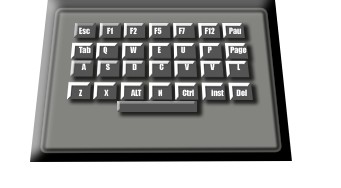
24. Here Type the key words help by the Text tool
25. If you want than you can change the Background color . As you like
26. You can create a new chair and table help by the Rectangular marquee tool and Filter > Render > Fiber effects .