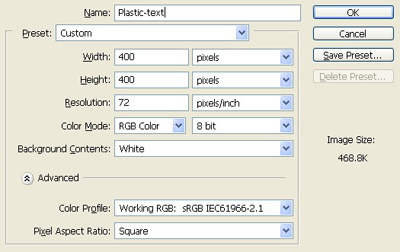
1. Take a new file of 400 pixels 400 pixels of resolution 72 dpi in the RGB mode.
2. Type any text which you want to take.

3. Take the gradient which you want to take I have taken this one.

Click to enlarge
4. Fill the gradient to it as I have done.

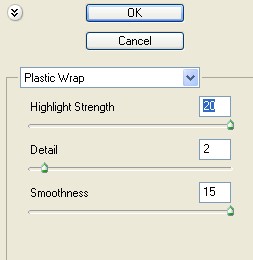
5. Goto Filter > Artistic > Plastic Wrap and apply these settings.
6. Your image will be like this.

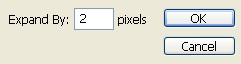
7. Goto Select > Modify > Expand.
8. Fill the black colour to it in a layer.

9. Pull the layer downward in the layer palette.

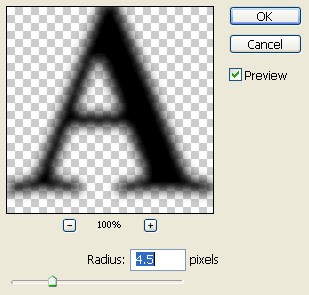
10. Goto filter > blur > gaussian blur
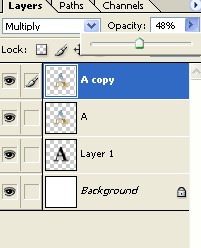
11. Apply the blending mode which are given below.
12. The final image will be like this.