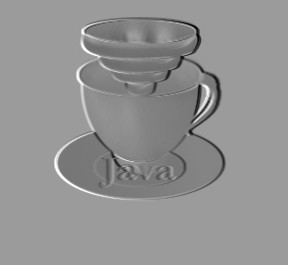
1. First of all open a new photo as shown below

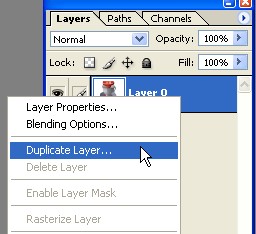
2. Right click on this layer and select the Duplicate Layer .
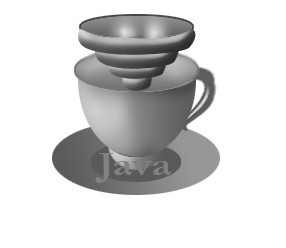
3. Now Shift+Ctrl+U or go to Image > Adjustment > Desaturate
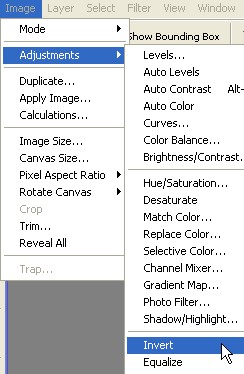
4. Apply the Image > Adjustments > Invert
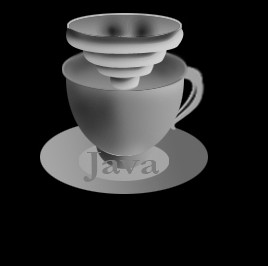
5. Your image should look like this
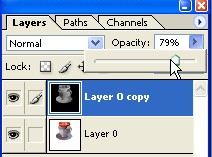
6. Reduce opacity to the layer . As shown below
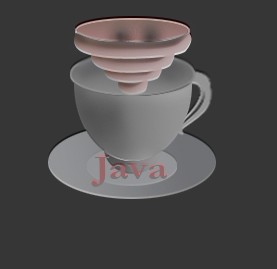
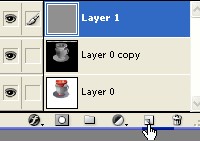
7. Create a new layer
8. Change your layer mode to color
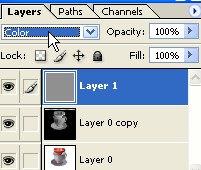
9. Grab the Move tool and hit Down then Right on your key board.
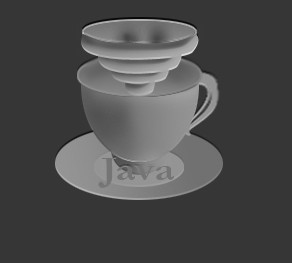
10. Now Go to Filter menu > Stylize > Emboss .Choose the setting below.
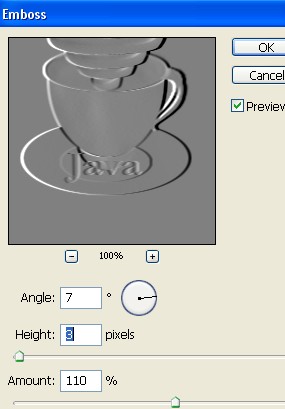
11. Your image has been completed . As shown below