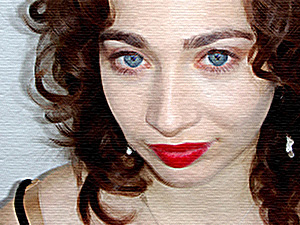
Grab the image that you wish to manipulate and we will begin the tutorial. Any image will be suffice.
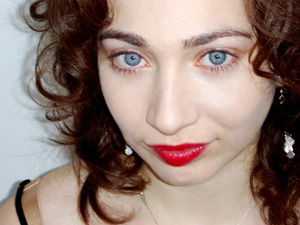
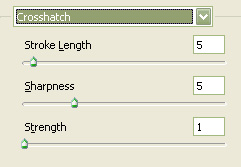
After you have an image go to the top main menu bar and select "Filter" then "Brush Strokes" and lastly "Crosshatch" and use the below settings.
You should now have the below image.
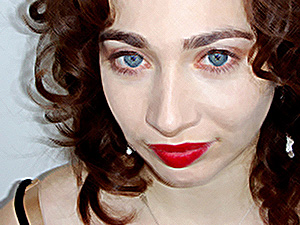
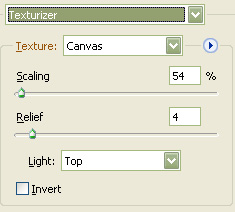
Go to the main menu again and click on "Filter" then "Texture" and lastly "Texturizer" and use these settings.
The Results!!!
Very easy tutorial, but the effect is not too shabby.