We'll begin this tutorial, by coloring the canvas with a light grey color. I used dddddd as my color.

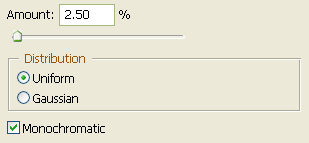
Next, go to the top main menu bar and select "Filter" then "Noise" and lastly "Add Noise" and use the below settings.
You should now have the below image.

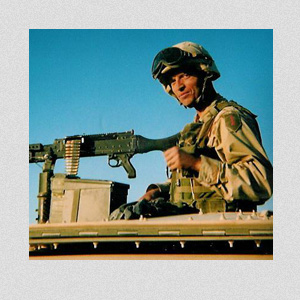
Now grab an image that you wish to use and resize or crop to fit. For this tutorial, I will use my cousin, and good friend, John.
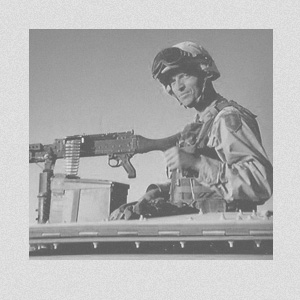
Now, go to the main menu and select "Image" then "Adjustments" and lastly "Desaturate". To get the below effect, I turned the Fill of the image down to 58%.
Now right click on the image layer and select, "Blending Options...". Now click on "Stroke".
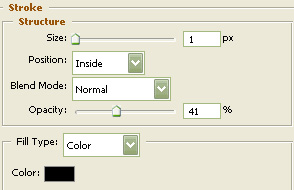
You may now click OK.
You should now have the below image.
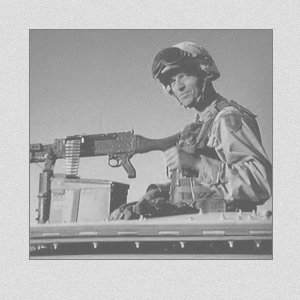
Now select the "Line Tool" and draw out a vertical line with a weight of 2. Make certain that the foreground/line color is a5a5a5. Duplicate the line layer and move to the other side of the image as I have done below.
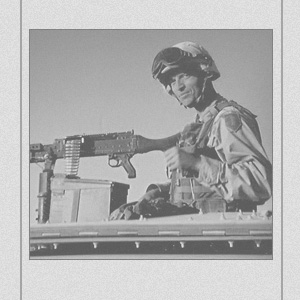
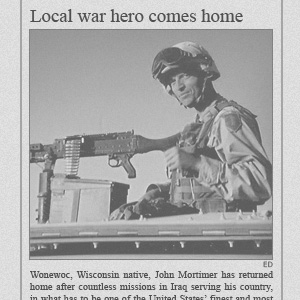
Then go ahead and choose the text tool. I chose "Times New Roman" as the typeface at a size of 18.8 using the color 595959. Now type a catchy headline for your image.
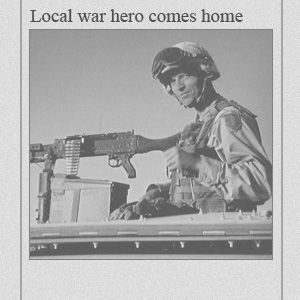
Next, choose the text tool again. I chose "Vedana" as the typeface at a size of 7, using the color 595959.
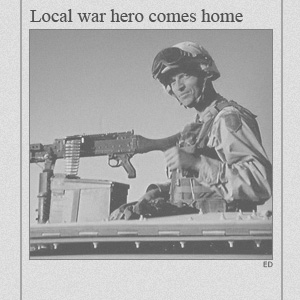
The Results!!!
For the captioned text, I used the same text settings as in step 9, just used smaller text size.