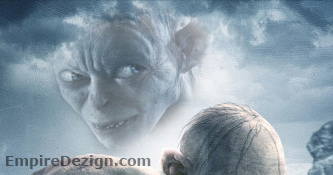
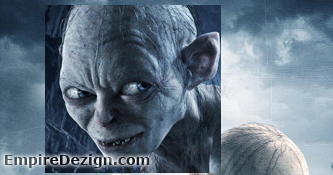
To begin this tutorial you will need a couple of images. I simply googled "Gollum" and got 18,700 results and found the below images. To use these images, simply click on them to download.
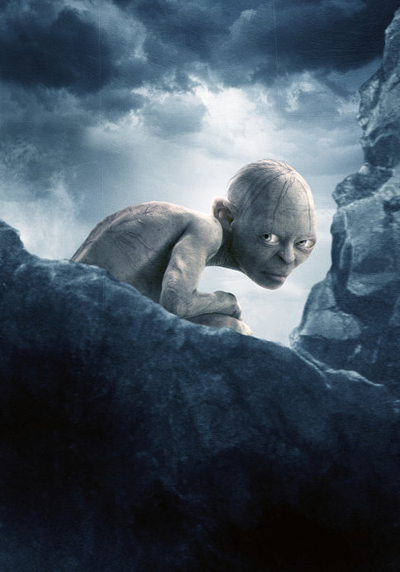
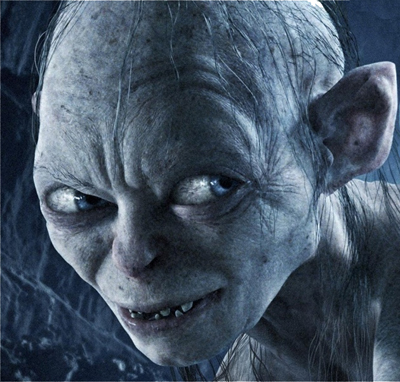
Click to enlarge
Once opened in Photoshop, you can drag the headshot image of "Gollum" onto the crouching image, resize and place where you wish to, as I have illustrated below.
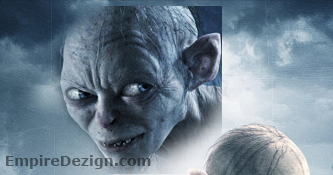
Now create a "Layer Mask" by clicking on "Layer" in the Main menu, then "Add Layer Mask" then "Reveal All." Make sure the foreground is black and grab the "Paintbrush Tool" with a soft edge and a size brush of 50 or so. I also turned the "Opacity" on the "Options Bar" down to 59. Now you can begin to chisel away the parts of the image you want to eliminate.
The Results!!!