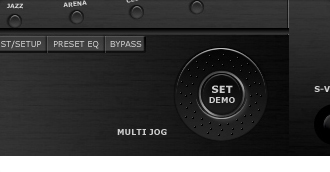
To start, make sure you have the image that you plan on adding the Jogger to. Now grab the "Eclipse Tool" and while holding in the "Shift" key on your keyboard draw a black circle.
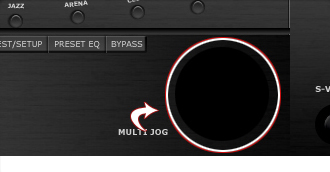
Now grab the "Elliptical Marquee Tool" and draw a small selection inside the circle while holding the "Shift" key. When you are sure that it is centered, press the "Delete" key, then hit "Ctrl" key + "D" on the keyboard to deselect.
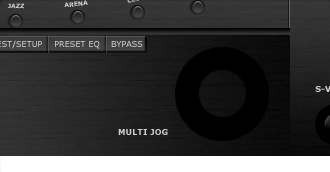
Now that you have deleted the center of the circle, right click on the layer and select "Blending Options...". Go ahead and click on "Drop Shadow"
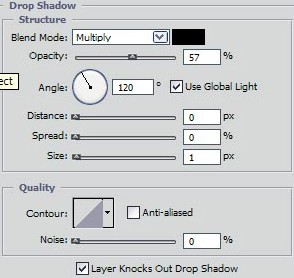
Do not click OK yet... still more to do.
Click, "Inner Glow" .
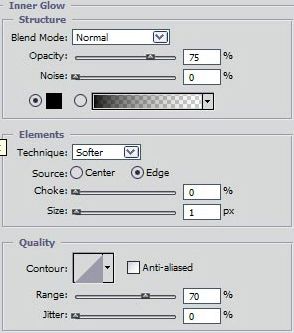
Do not click OK yet... still more to do.
Click, "Bevel and Emboss".
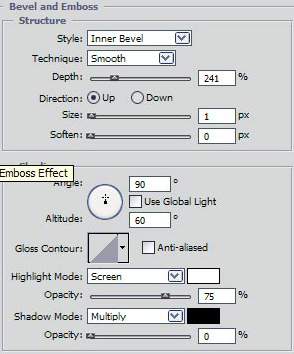
Do not click OK yet... still more to do.
Now click, "Color Overlay".
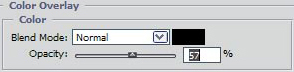
Do not click OK yet... still more to do.
Now you are able to click on "Gradient Overlay " .
You may now click OK ;)
It should now look like the below.
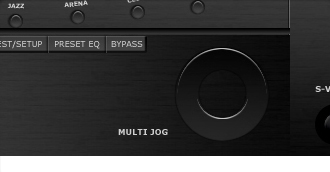
Now choose the "Elliptical Marquee Tool". While holding the "Shift" key in on the keyboard, draw three circles, as shown below. Create a new layer then go to the main menu and select "Edit" next "Stroke". Make them 1 pixel with color white and select ok. This will serve as a guide for the dots we will be penciling in. It should look like the below.
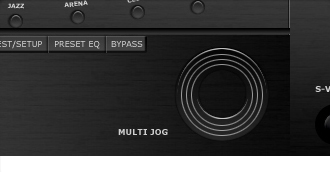
Now grab the pencil tool and choose black as the color and 2 pixels wide. create a new layer and while using the guides we previously made, create some dots as I have done below.
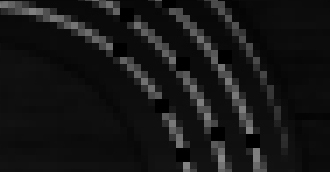
Once you have completely encircled it with black dots, you may delete the guides, and can now change the color to grey (827E7E), and change the pixel size to 1. Now it's time to pencil in the grey dots. The upper corners of the previously made dots to be precise, as illustrated below.
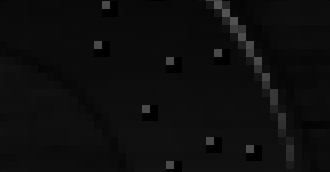
It should now look like the below.
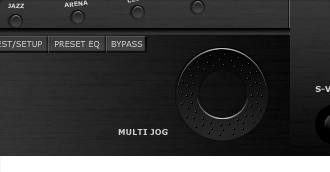
Now choose the "Elliptical Marquee Tool". While holding the "Shift" key in on the keyboard, draw a selection, as shown below. Fill with Black and Deselect.
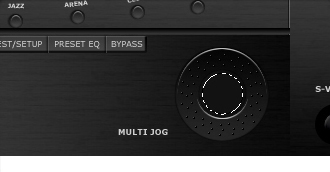
Now, right click on the layer and select "Blending Options...". Go ahead and click on "Drop Shadow"
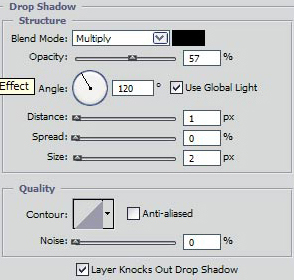
Do not click OK yet... still more to do.
Click on "Inner Glow".
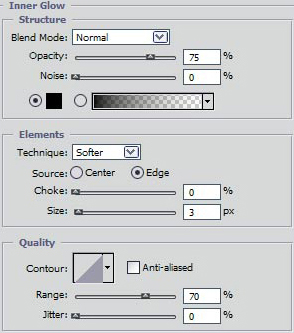
Do not click OK yet... still more to do.
Click on "Bevel and Emboss".
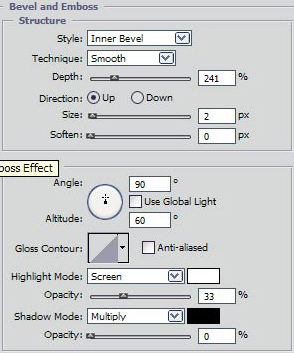
Do not click OK yet... still more to do.
Click on "Color Overlay".
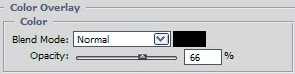
Do not click OK yet... still more to do.
Click on "Gradient".
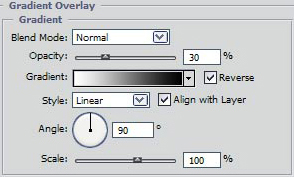
You may now click OK.
You should now have the following.
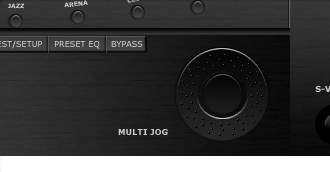
Now we will add the ring. First create a new layer. Hold the "Ctrl" key on your keyboard and left click on the previous layer. This will put a selection around the circle. Now go to "Select", "Modify", then "Expand..." Put in 1 for size and click ok.
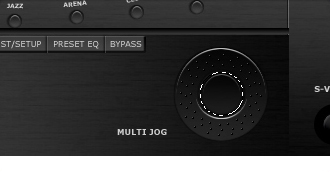
Now go to "Edit", then "Stroke". Make it 2 pixels, center...click OK.
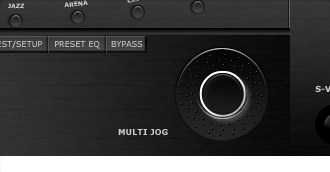
Now right click on the layer and select "Blending Options...". Go ahead and click on "Inner Shadow "
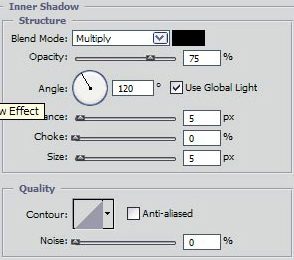
You may now click OK.
The Results!!!
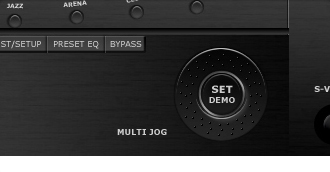
I have added some text, "SET DEMO" to finish it off. Hope you enjoyed this tutorial!