

I would say the simplest and easy way to learn flash is start with the basic. Today I'm going to walk you through the process of making a simple animation known as TWEENING in Flash.
Tweening is a key process in flash animation. Flash animation is created by making changes to position or shape of the object frame by frame. The process is done in the way that it gives the appearance that the first object evolves smoothly into the final object.
Without further ado, let's begin our lesson. Below is the final product of this tutorial.
1. Create a new flash movie and change the size to 350 x 100
2. Choose a rectangular tool by clicking on or press R on your keyboard
3. Create a small rectangle to the left of the stage
4. Choose an arrow tool by click on or press V on your keyboard
5. Select the rectangle by double click on it
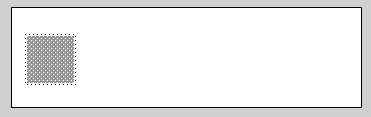
6. Click 'insert', choose 'Convert to Symbol' and select 'Graphic' as behavior
7. Type 'rectangle' in the name field then click ok
8. On the timeline use your arrow tool to click on frame 25. Do this by clicking the gray rectangle below number 25.
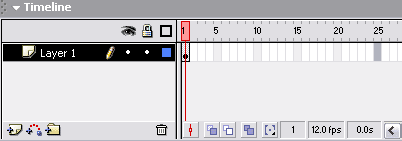
9. Click 'insert' and choose 'Keyframe'. You get something like this
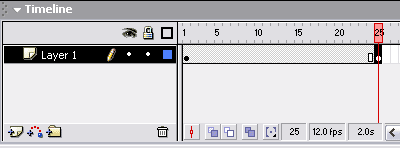
10. With your arrow tool (V) still selected, click on frame 25 of the timeline. Make sure you have something like figure above.
11. Use your arrow tool (V) to move your rectangle towards the right side of the stage. You do this by click on the rectangle and drag it to the right hand side.
12. Now, click ANYWHERE between frame number 1 to 25.
13. Click 'insert' and choose 'Create Motion Tween'
14. Press 'Ctrl + Enter' or click 'Control' and choose 'Test Movie'.
Congratulation, you have just create your first animation :). You may have notice that my flash movie actually stops playing after it has reached the right hand side of the stage. This is because I've tell Flash player to do so. And don't panic, I'm here to help you. Here we go:
15. Choose an arrow tool (V) and click on frame 25. By now you would be able to know where frame 25 is. If not, refer back to point 8 earlier.
16. Click 'Window' and choose 'Actions' or press F9 on your keyboard.
17. Click on the blue arrow on top right corner of Actions Panel and select Expert Mode
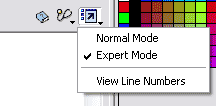
18. And now type in the Action Panel with this line:
stop();
19. Now Test your movie again by 'Ctrl+Enter'.
In case you can't seem to get it to work. Here is the flash mx source code.
Finally, this technique is great but if you need cool effect to use with this technique, you may find flash tutorial on fading useful. Click here to go to flash fading tutorial.
