

Fading is an indispensable technique for flash designers. If you are a movie fan, you would have seen this technique a lot during the intro to the main movies. And sometimes designers use multiple fading effects to give a nice touch and professional look to their designs.
Today we are going to make this great effect. Take a look at item below
1. Create a new flash movie and change the size to 150 x 50.
2. Choose a text tool or press T on your keyboard.
3. Open the Property Inspector (Ctrl+F3).
4. Change font to Impact. We choose Impact because the effect of fading can be clearly seen.
5. Change the font size to around 24 and color to anything you wish.
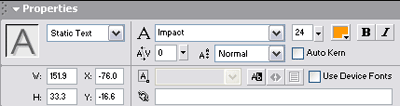
6. With the text tool still selected, click on the left side of the stage and type any words you wish and limit the length so that there's no overflow on the right hand side.
7. Choose an arrow tool or press V on your keyboard.
8. Select the word you just typed by clicking on it once.
9. Click 'insert', choose 'Convert to Symbol' and select 'Graphic' as behavior.
10. Type 'fading' in the name field then click ok
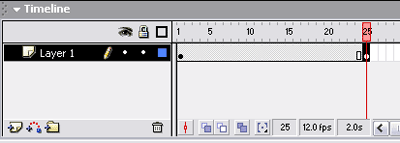
11. On the timeline use your arrow tool to click on frame 25. Do this by clicking the gray rectangle below number 25.
12. Click 'insert' and choose 'Keyframe'. You get something like this
13. Open up your property inspector by pressing Ctrl+F3
14. Without do anything to the timeframe, use your arrow tool to click on the word you type earlier to select it
15. In property inspector, change the drop down list of color to Alpha.
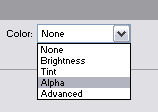
16. Use slider to slide the number to Zero.
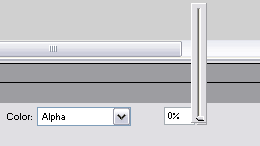
Now, you have created two objects. One is at the first frame with no Alpha value or Alpha value is 100 and the other one is on the 25th frame with Alpha value set to zero.
Alpha value is very useful property to create transparent images. Alpha value of 100 means the image is completely visible whereas alpha value of zero means the image is completely transparent.
17. Now, choose the arrow tool (V) and click any where in between the frame number 1 and frame 25.
18. Click 'insert' and choose 'Create Motion Tween'.
19. Test your movie by pressing Ctrl+Enter
Now you have completed this essential technique. Combine with the tweening tutorial you will have the power to create something more pleasant. Here is an example:
Finally, use your creativity to create any effects you like using this flash fading technique and I assure you that you will love it too.
Click here to get source code.
