

Creating a simple photo transition effect has not been any better. This tutorial shows you the simplest way to create a cool photo transition effect. This tutorial will make use of, importing photo files to library, tweening and changing alpha value. If you are not sure what is tweening or want to learn more about tweening, please check tweening tutorial first.
Today you are going to make this great effect. Take a look at item below
1. Open a new flash file. In my case, I set size to 280 x 210 to fit my photos.
2. Click 'File' and choose 'Import to Library'.
3. Browse to find photos and choose many photos as you wish for the effect. I choose 3 for this tutorial.
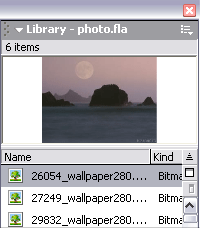
4. Click 'Window' and choose 'Library' or press F11. You will see this panel popup. It should contain the photos' file names you've just imported.
5. Now for each photo, create a new layer. In this tutorial I have 3 photos so I'll make three layers.
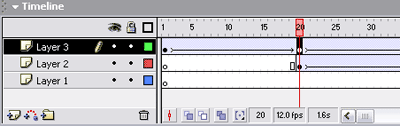
6. Place separate photos to separate layers by drag the file name from the library panel and drop it into the first frame of that layer.
7. Convert each image on each layer to a movie instance by
- clicking on the photo
- using mouse's button right click and choose 'convert to symbol'
- selecting 'Movie Clip' under Behavior radio button. Click ok
8. Now, you have all your photos as movie clips and hence you can apply alpha property to them. By the way, alpha has a value of 0 to 100. While 0 will make the movie clip invisible, 100 will make it completely visible.
9. Click on first frame of top layer, layer 3 in this case, click on the movie clip instance and press Ctrl+ F3 to open up property inspector and change the alpha value to 0.
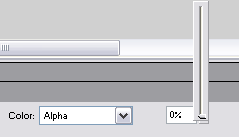
10. Click on frame 20 on top layer, layer 3 in this case, click on the movie clip instance and change the alpha to 99. You don't make alpha to 100 because there's problem with bitmap being jittering if alpha is 100.
11. Click on frame 40 on top layer, layer 3 in this case, click on the movie clip instance and change the alpha back to 0.
12. Make tweening between frame 0 and 40. If you need help on tweening, click here.
13. Repeat steps 9 to 12 for other photos. However, to have the transition effect, you will make other movie clip come to visible while the photo on top of it fades away. This can be done by insert a key frame 20 frames after the layer on top of current layer and repeat steps 9 to 12.
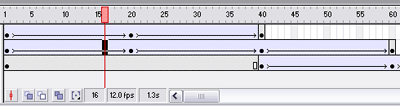
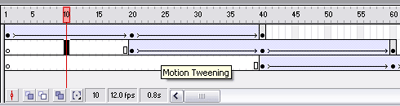
14. You do not want to display the photos on layers 1 and layers 2 when photo on layer 3 fades in. Therefore you need to delete some frames on layer 1 and 2. Do the following:
- On layer 2, IF there is a tween BETWEEN frame 1 and 20 (refer to figure above), remove it by right click on any frame between 1 and 20 and choose 'remove tween'. (optional)
- On layer 2, click on any frame between frame 1 and 20 and press 'Delete' on your keyboard.
- On layer 1, IF there is a tween BETWEEN frame 1 and 40, remove it by right click on any frame between 1 and 40 and choose 'remove tween'. (optional)
- On layer 1, click on any frame between frame 1 and 40 and press 'Delete' on your keyboard.
If you have done this correctly, you will get something like this:
15. Now you are ready to test your movie. Press 'Ctrl+Enter'.
Finally, if you can't manage to get it working, see the flash mx source code and you will understand it better in no time.
