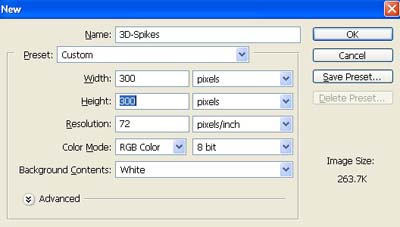
1. Take a new file of 400 pixels 400 pixels of resolution 72 dpi in the RGB mode.
2. Fill the new document with color black.

3. Hold Ctrl+I. Then select the Elliptical Marquee Tool
 and you will get a perfect circle.
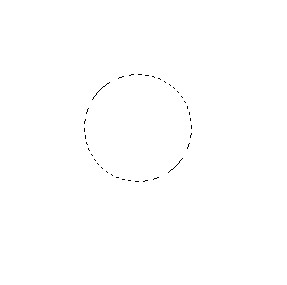
4. The again click Ctrl+I to fill the area inside the circle white Then unselect the Elliptical Marquee Tool.

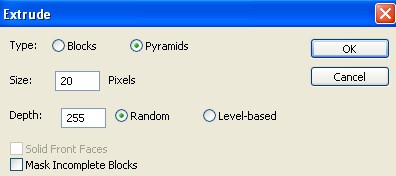
5. Then go to Filter>Stylize>Extrude.
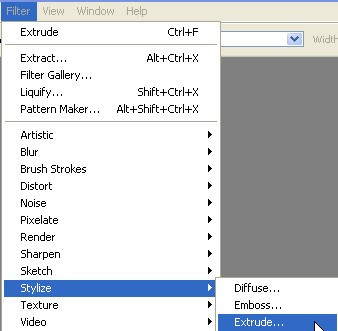
6. Apply the following settings as shown in the image below.
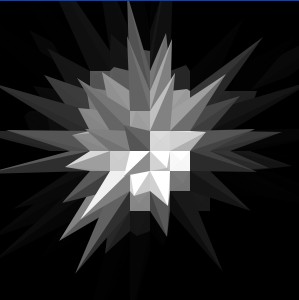
7. Your image should be look like this.
8. But now we had to color it up but before we go we have have to again click Ctrl+I.
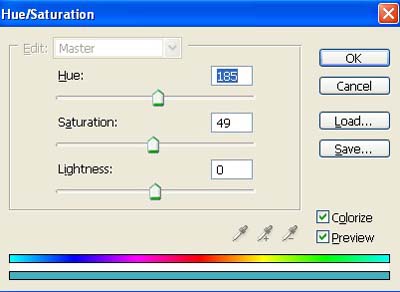
9. Then go to Image>Adjustments>Hue/Saturation use the following settings.
10. Your image should be look like this.

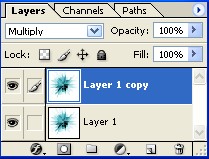
11. Now make the copy of layer1 as shown image below.
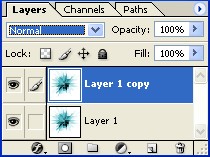
12. And the final step change the Blending Mode see in the next image.
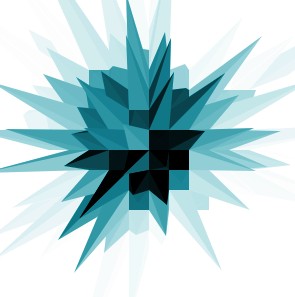
13. Your final image should be look like this.