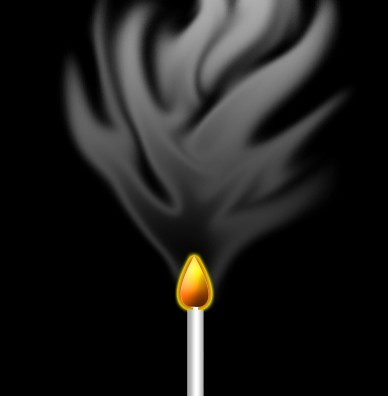
1. Take an image which you are seeing below.
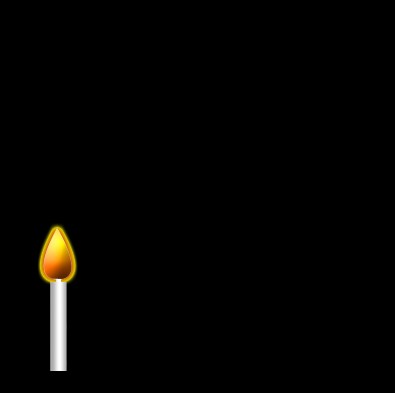
2. Take the brush of the setting which you are seeing below.

Click to enlarge
3. Apply the brush as in the image.
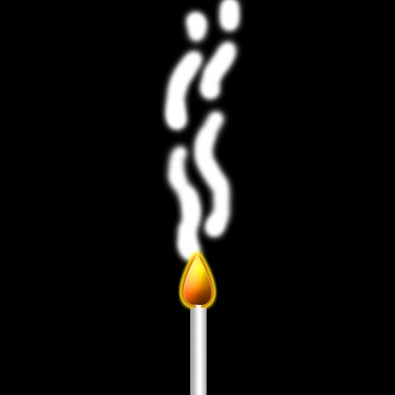
4. Apply the settings of smudge tool as given below.

Click to enlarge
5. Make your image like this.
6. Take the gradient of the setting given below.

Click to enlarge
7. Click on the layer with the Ctrl key to make the selection.
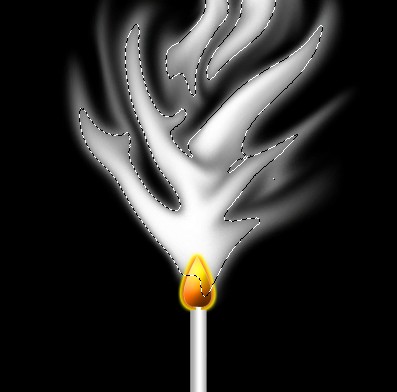
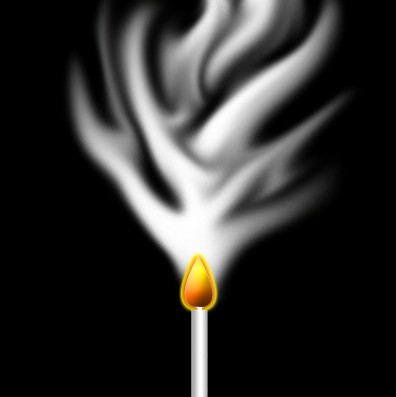
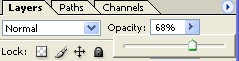
8. Fill the gradient in the selection and apply the opacity as given below.
9. Your image will be like this.