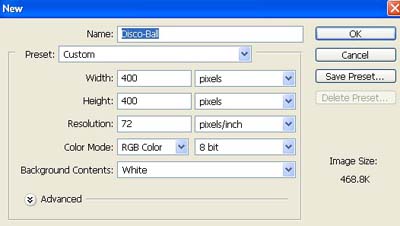
1. Take a new file of 400 pixels, 400 pixels, of resolution 72 dpi in the RGB mode.
2. Fill the new document with color black.

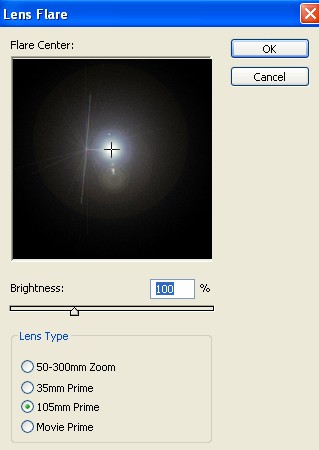
3. Now go to Filter>Render>Lens Flare and use these settings.
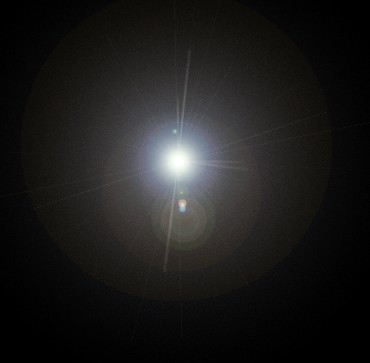
4. Your image should be look like this.
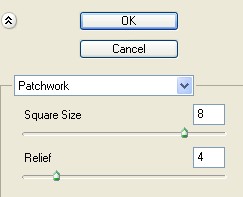
5. Go to Filter>Texture>Patchwork use these settings.
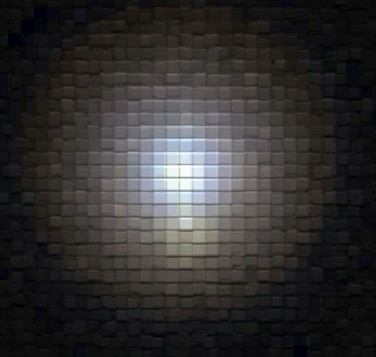
6. Your image look like this.
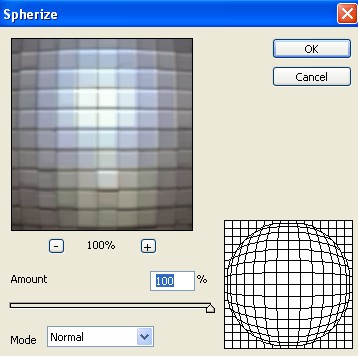
7. Then go to Filter>Distort>Spherize apply these settings.
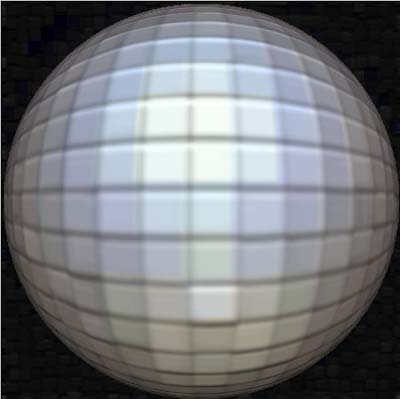
8. Press Ctrl+F to use the same filter again and then your image should be look like this.
9. Now select the Elliptical Marquee tool
 and make a selection while holding down shift, like the image below.
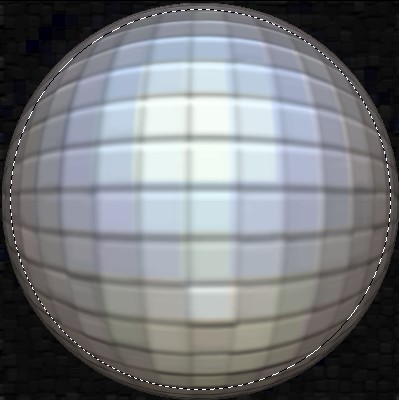
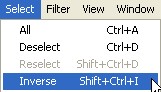
10. Then go to Select>Inverse.
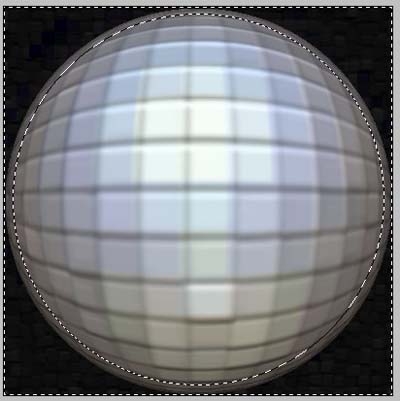
11. Your image look like this.
12. Press Delete to inverse selection. Then deselect Ctrl+D.
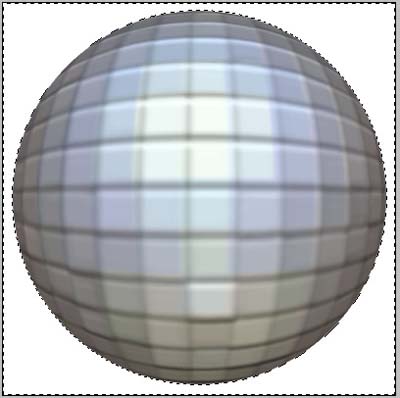
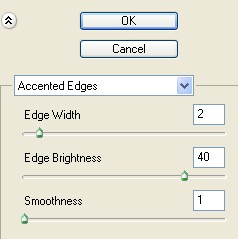
13. Go to Filter>Brush Stroke>Accented Edges apply the following settings.
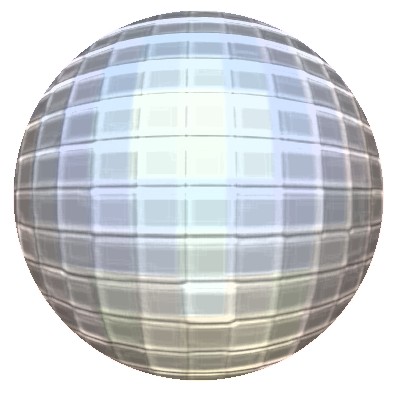
14. Your image should be look like this.
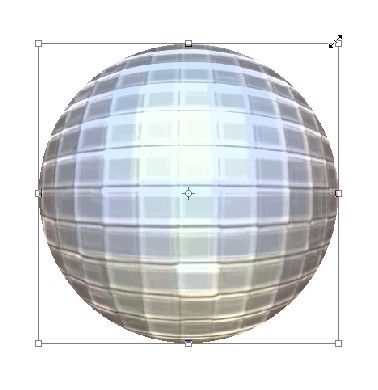
15. Make the disco ball a bit smaller by transforming (Ctrl+T) see in the image.
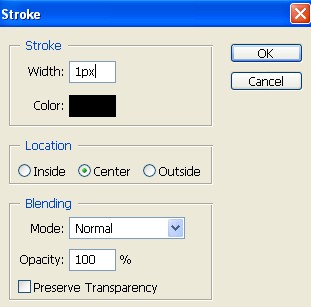
16. And add a stroke.
17. Select the background layer and fill it with black.
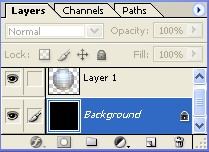
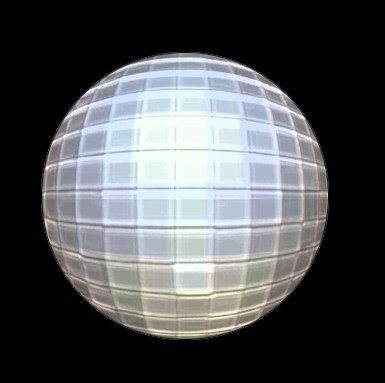
18. Your image should be look like this.
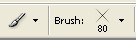
19. Finally select the brush from the tool palette use these sittings.
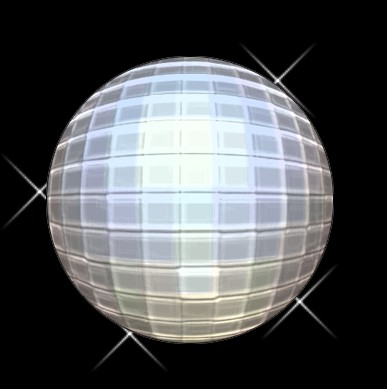
20. Your final image should be look like this.