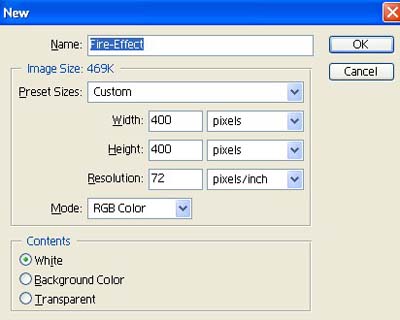
1. Take a new file of 400 pixels, 400 pixels, of resolution 72 dpi in the RGB mode.
2. Fill the new document with color black.

3. Select the custom Tool from the tool palette use these settings.
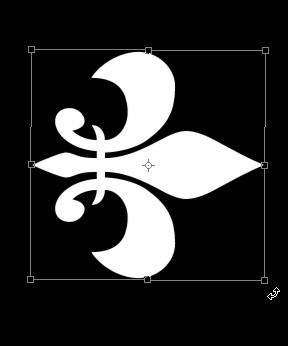
4. Draw the shape and make a selection fill it color white.

5. Press the Ctrl+T transforming selection and rotate shape see in the next image.
6. Then go to Filter>Stylize>Wind use these settings.
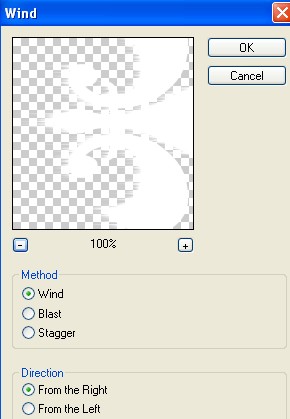
7. Press Ctrl+F 3 more time your image should be look like this.
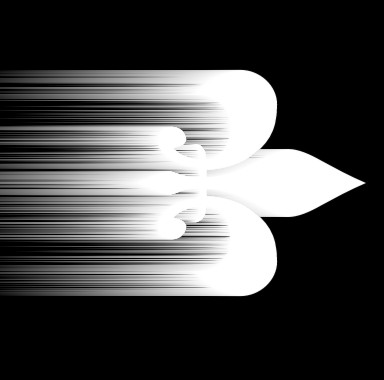
8. Select the Smudge Tool from the tool palette.
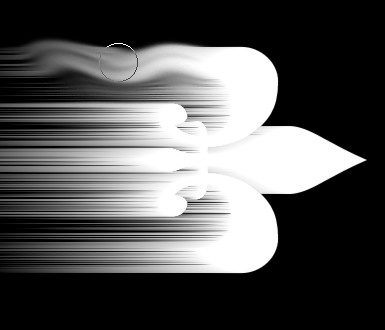
9. Your image should be look like this.
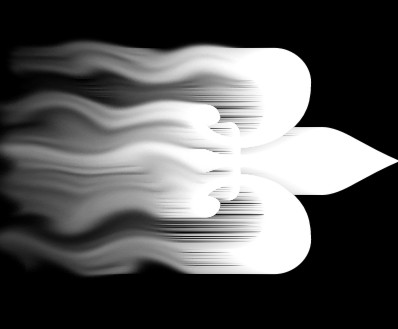
10. Now create a new layer.
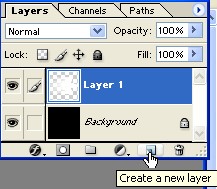
11. Now hold Ctrl and click on the layer1 see in the next image.
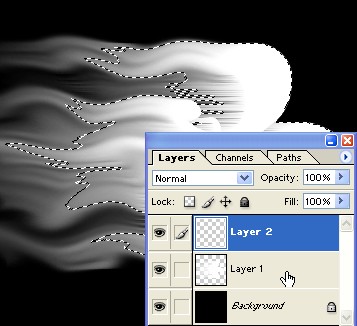
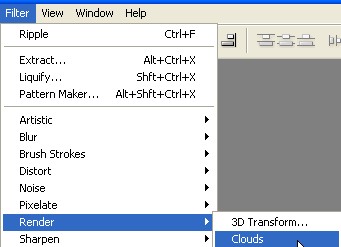
12. Then go to Filter>Render>Clouds.
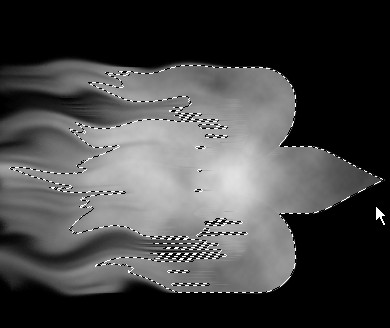
13. Your image should be look like this.
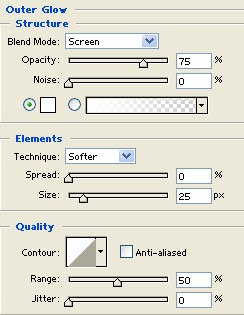
14. Go to Blending Option now click on Outer Glow Structure use these settings.
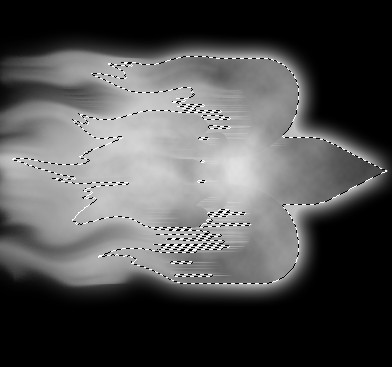
15. Your image will look like this.
16. Now create a new layer from the layer palette And fill it with color black.
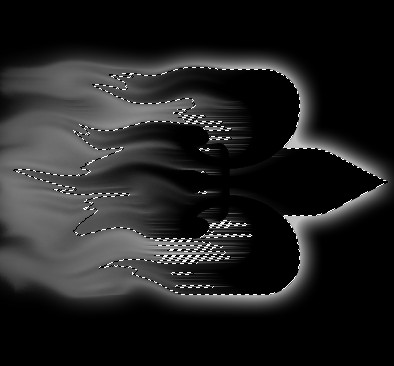
17. Now select the layer2 and merge it with the new black layer.
18. Auto name this layer3 and make it invisible for now.
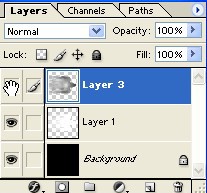
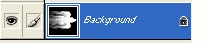
19. Select the layer1 press Ctrl+E to merge it with the Background layer see in the next image.
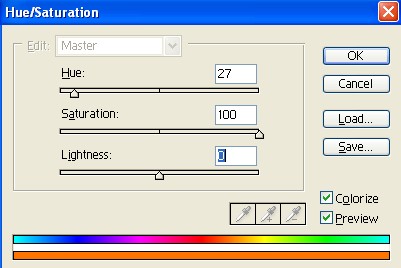
20. Now go to Image>Adjustments>Hue/Saturation use these settings.
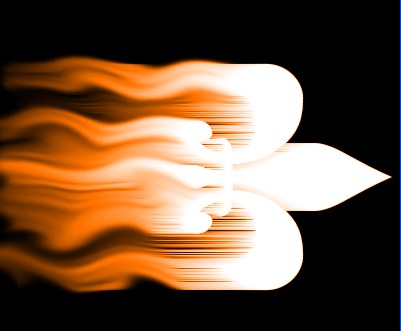
21. Your image should be look like this.
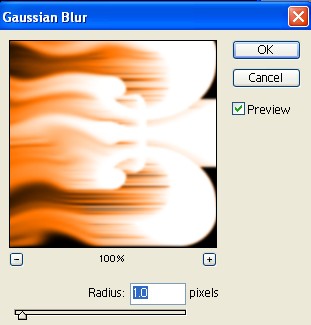
22. Go to Filter>Blur>Gaussian Blur apply the following settings.
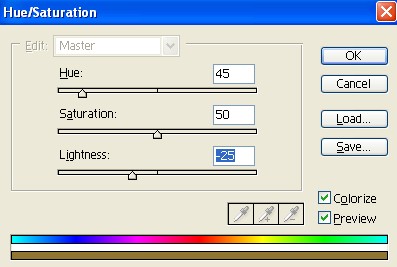
23. And now select the layer3 go to again Image>Adjustments>Hue/Saturation use these settings.
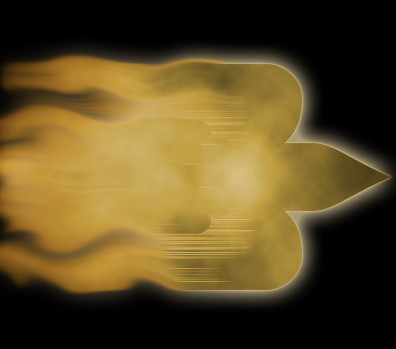
24. Your image should be look like this.
25. Go to the layer palette and change the color mode Color Dodge showing in the next image.
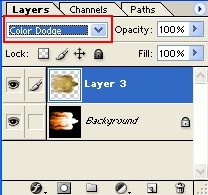
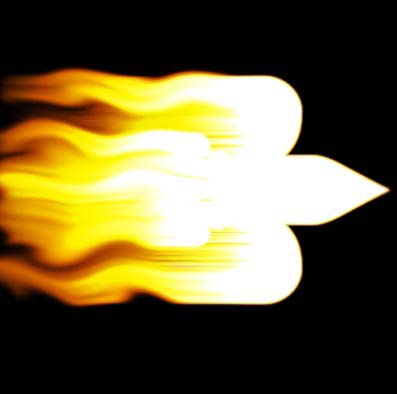
26. Here is a result of Fire Effect.