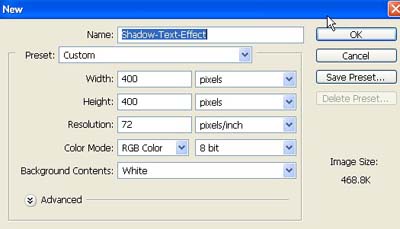
1. Take a new file of 400 pixels, 400 pixels, of resolution 72 dpi in the RGB mode.
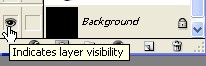
2. First thing I filled the background layer with black, then click the little "eye" in the layers palette to make the layer invisible.
3. I am just doing this so I can see what I am doing for now.

4. Now make the copy of layer Low see in the next image.
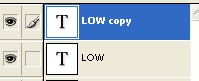
5. Apply these layer styles to your top shape layer.
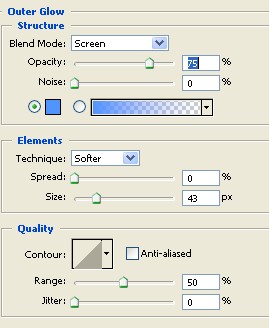
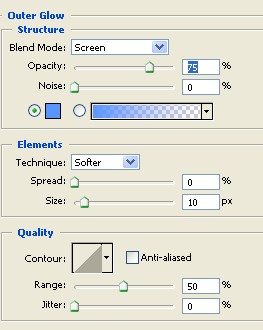
6. Now select the Outer Glow Structure from the Layer style and use the following settings
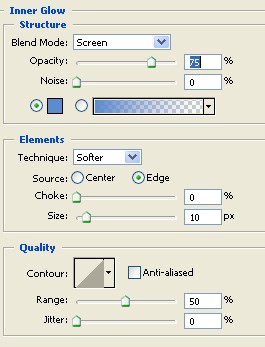
7. Now select the Inner Glow Structure from the Layer style and use the following settings
8. Your image should be look like this.

9. Apply this layer style to your bottom shape layer.
10. Now select the Drop Shadow from the Layer style and use the following settings.
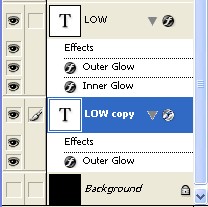
11. When your done your layers palette should looks something like this.
12. Your image should be look like this.

13. Now you can make the Background layer visible.

14. Now make a new layer, make sure this layer is on the top Layer>Arrange>Bring to Front Ctrl+Shift
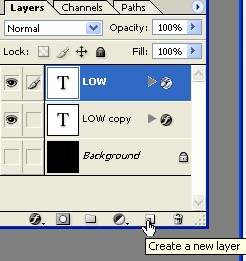
15. In the layer palette change the new layers Blend Mode to color Dodge see in the next image.
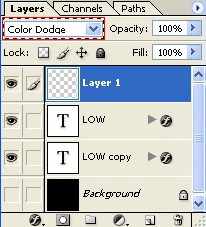
16. Finally go to Filter>Render>Clouds make sure your colors are black and white Press D, resets color.

17. The Click the little "eye" in the layers palette to make the layer visible.
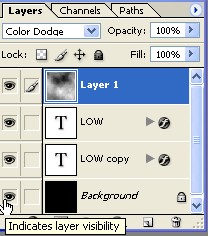
18. Your final image should be look like this.