Step 1: We will create a new 270px by 270px document with a white background.
Step 2: Add a new layer on top now with the help of Ctrl + enter fill this gradient:
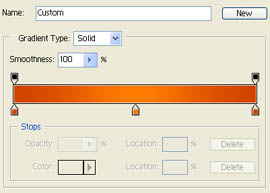
Step 3: Do the gradient horizontally from right to left.
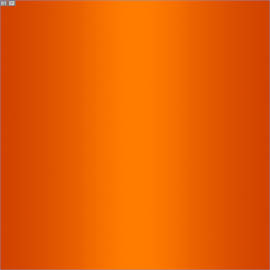
Step 4: Then add another layer on the top of the one you had before and then with the help pen tool draw the following shape.
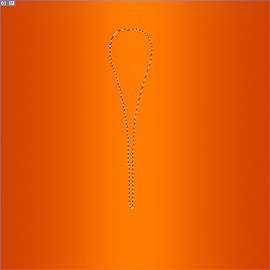
Step 5: Fill it with the following colors using gradient settings:
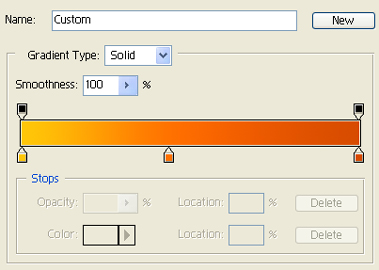
Step 6: now make use of radial gradient from top to the bottom.

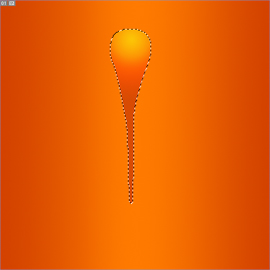
Step 7: Create a layer below the previous one.
Then use using pen tool and draw the following shape and fill it with this linear gradient.
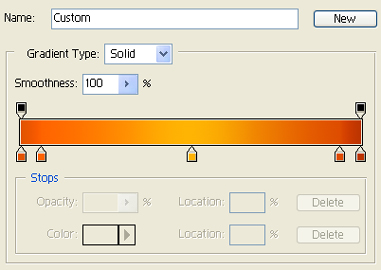
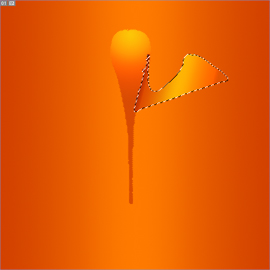
Step 8: Again create a new layer below the previous one and using pen tool draw the a new shape and fill it with this gradient (Linear).
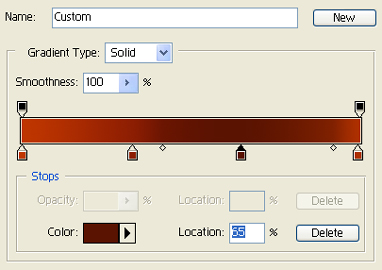

Step 9: After creating a new layer again. make use of pen tool and draw the following object and fill it with this gradient(Linear).
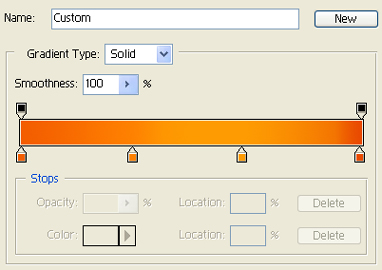
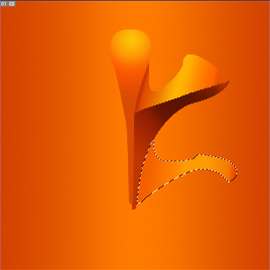
Step 10: One more layer and Now by using pen tool draw the following object and fill it with this gradient(Linear):
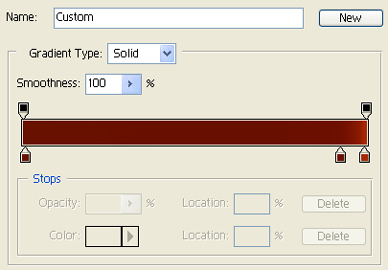

Step 11: (Add new layer below the previous one) Now by using pen tool draw the following object and fill it with this gradient (Linear):
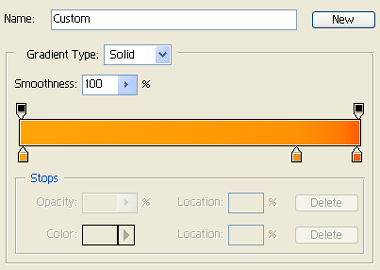
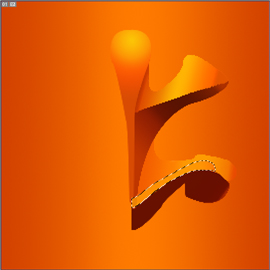
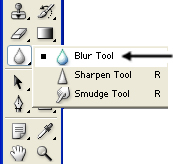
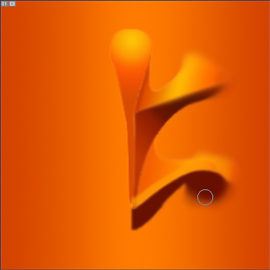
Step 12: With the help of Blur Tool make the edges Blury or mix with the background.
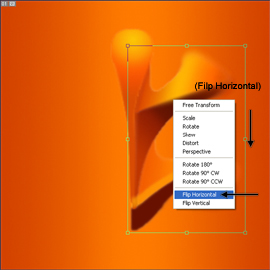
Step 13: First select all layers but not the top one and the last one and by Ctrl + e combine those layers , make a duplicate of that layer. Now press Ctrl + t and then goto the flip horizontal option to make an opposite copy :
Step 14: Press Ctrl + e and combine all layers but not the last background layer.
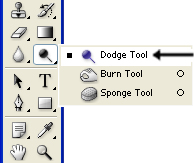
Then by using Dodge Tool make shine type effect on the top and other corners as shown below.
Add a new layer on top of last layer and then with the help of brush (with normal mood, 2% opacity and black color).

Step 15: Use Blur Tool again make those shine a part of the 3D embossed logo, after that select this layer and goto Filters --> Sharpen --> Sharpen.