


This tutorial shows the most basic way to create a user login interface using nothing but flash and its components.
1. The first thing you want to do is create 1 or 2 text fields, its all up to you. Make sure they are all INPUT fields, and marked var names accordingly, like for login, use a var name of "login" and vice versa.
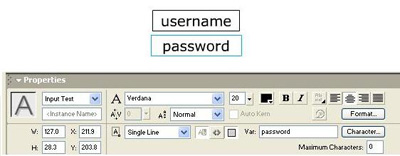
2. The next step, is to make a submit button for your fields. We will apply the code now to get through the hard part ;)

3.
| on (release) {
if (login eq "Preferred Login Entry") { gotoAndPlay(Correct Entry Frame); login = ""; // Leave ^^^ alone, it clears the text var // after submitting. else { gotoAndPlay(Frame for Error Page); } } |
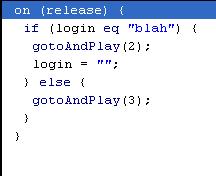
(I made a screenshot to make sure you have the script right)
4. Now you see the script calls for an error page AND a correct entry page. You (should) be able to do that without my help. Everything should work after you make the script. If it doesnt, you can refer to the source I have provided at the bottom. It isnt the same layout, with only one text field, but the script is exactly the same.
5. Explanation of code:
( on (release) { )) - Used to declare an action on release of mouse from the button specified
(( if (login eq "blah") { )) - Shows a clarification on if, if this comes back true, it performs this action:
gotoAndPlay(2); login = ""; } else { gotoAndPlay(3); } - This uses the else action to go to a specified frame if the entry is anything other than the correct entry.
I hope this tutorial helps you, and I have provided the source and a working example of a ONE text field.
