

Step 1:
First, make a text layer and write whatever you want.
Here is what I used to do it:

Step 2 and the last one:
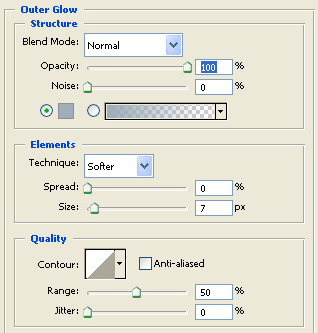
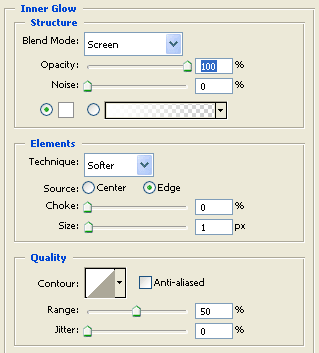
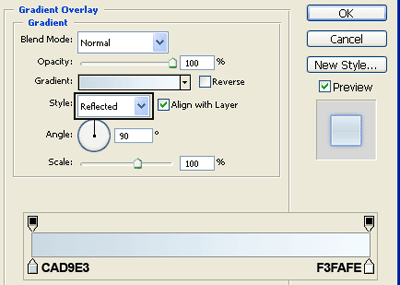
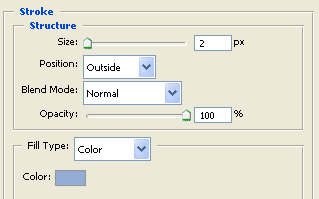
Add effects to this text layer. here are all of the effects that I did.
Outer Glow:
Inner Glow:
Gradient Overlay:
Stroke:
And that's it! here is my result:

Have a nice day!
