

Step 1:
Open a new document and fill it in with black color.
Step 2:
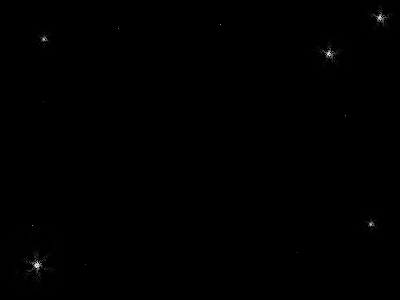
Open a new layer. Set the foreground color to white. Take the brush tool, and choose a star brush. Make some stars on the corner of the document, like i did. [if you don't have stars brushes, just use circle brush 1 px].
Step 3:
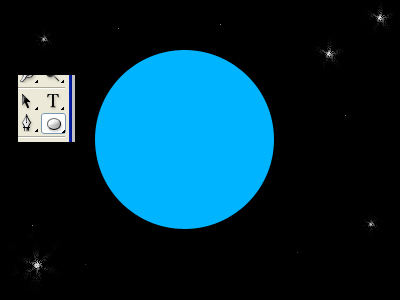
Open a new layer. Set the foreground color to #00B4FF. Choose the 'ellipse tool', and draw a circle. For a symmetrical shape, press 'shift' while dragging.
Step 4:
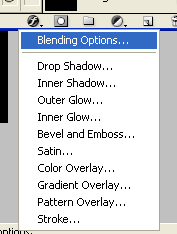
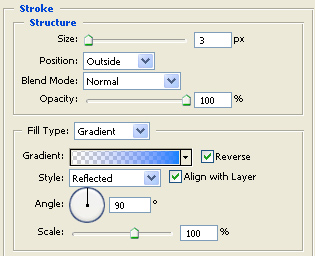
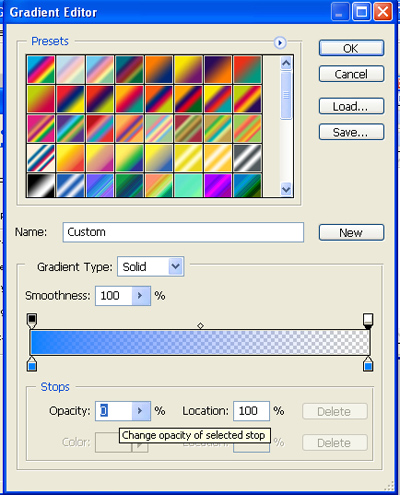
Stay on the same layer, and press on the little 'F' on the bottom of the 'Layers' window. Then choose 'Blending Options'.
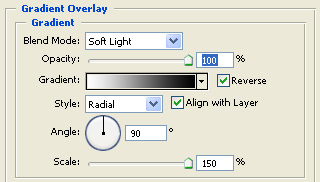
Now do the following:
Step 5:
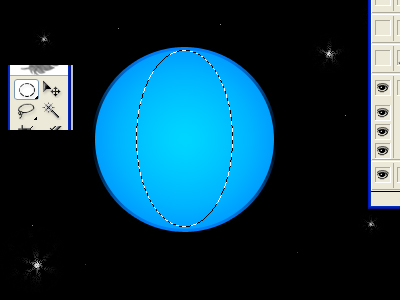
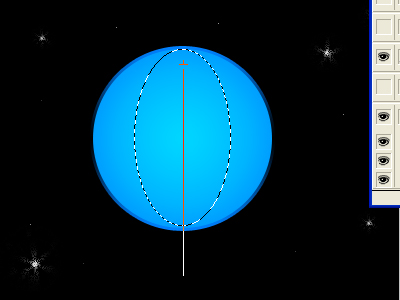
Open a new layer. Choose the 'elliptical marquee tool' and mark an ellipse across the big circle we did.
Step 6:
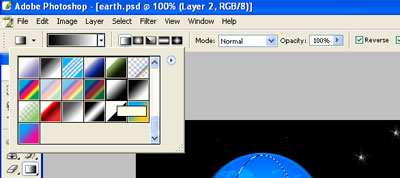
Don't deselect the ellipse yet. Choose the 'gradient tool', and find the black-white gradient.
Step 7:
To fill in the gradient, you need to press once on the top of the shape we selected, and drag it down. The white part must be on the top. If it's not, mark V near "reverse" and fill in the gradient again.
Step 8:
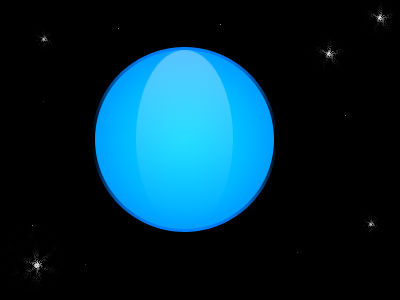
You can deselect now. The same layer, change the mode to "screen" and the opacity to 40%.
Step 9:
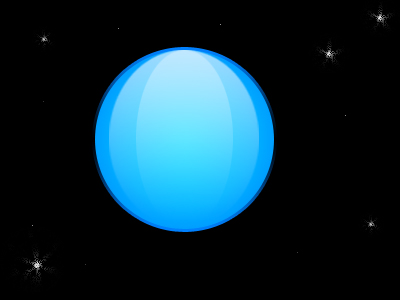
Open a new layer, and use the 'Ellipse marquee tool' for another ellipse. This time the selection must be wider then the last time. Follow step #7 again. Set the layer on 'screen' mode, and the opacity: 70%. The result will looks like this:
Step 10:
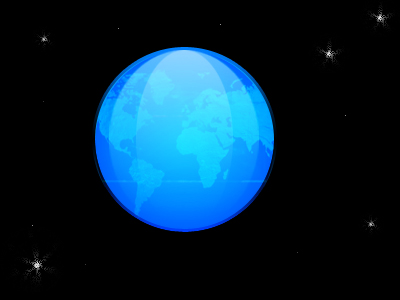
Find a picture of world map, and paste it on the top of the all layer. If it's too big, make it smaller by 'free transform' [edit> free transform]. Set the mode to 'soft light' and... you're done!
Have a nice day!
